
If you have "standard" projects that you know you're always taking, you can instruct BeLazy to automatically approve these and create them in the Business Management Hub. You can set up rules that automatically approve or ignore projects that come from a given connection and meet certain conditions. A rule can combine several conditions with And and Or, including nested groups of conditions.
Approval is the process of:
- accepting a project in the Content and Project Hub system (origin system), if this functionality is available. It's a status change in the origin system to indicate that you are willing to start working on the project.
- freezing the project description. This is the moment BeLazy checks if everything is still intact, and if so, takes a snapshot of the project. Further source scope changes are not possible, except vendor assignments and job status changes.
- performing the mapping between the client's system values and the values used in the Business Management Hub and your translation management system.
- if configured, creating the translation management system project and analysis.
- creating the project and analysis in the Business Management Hub.
Setting up a rule
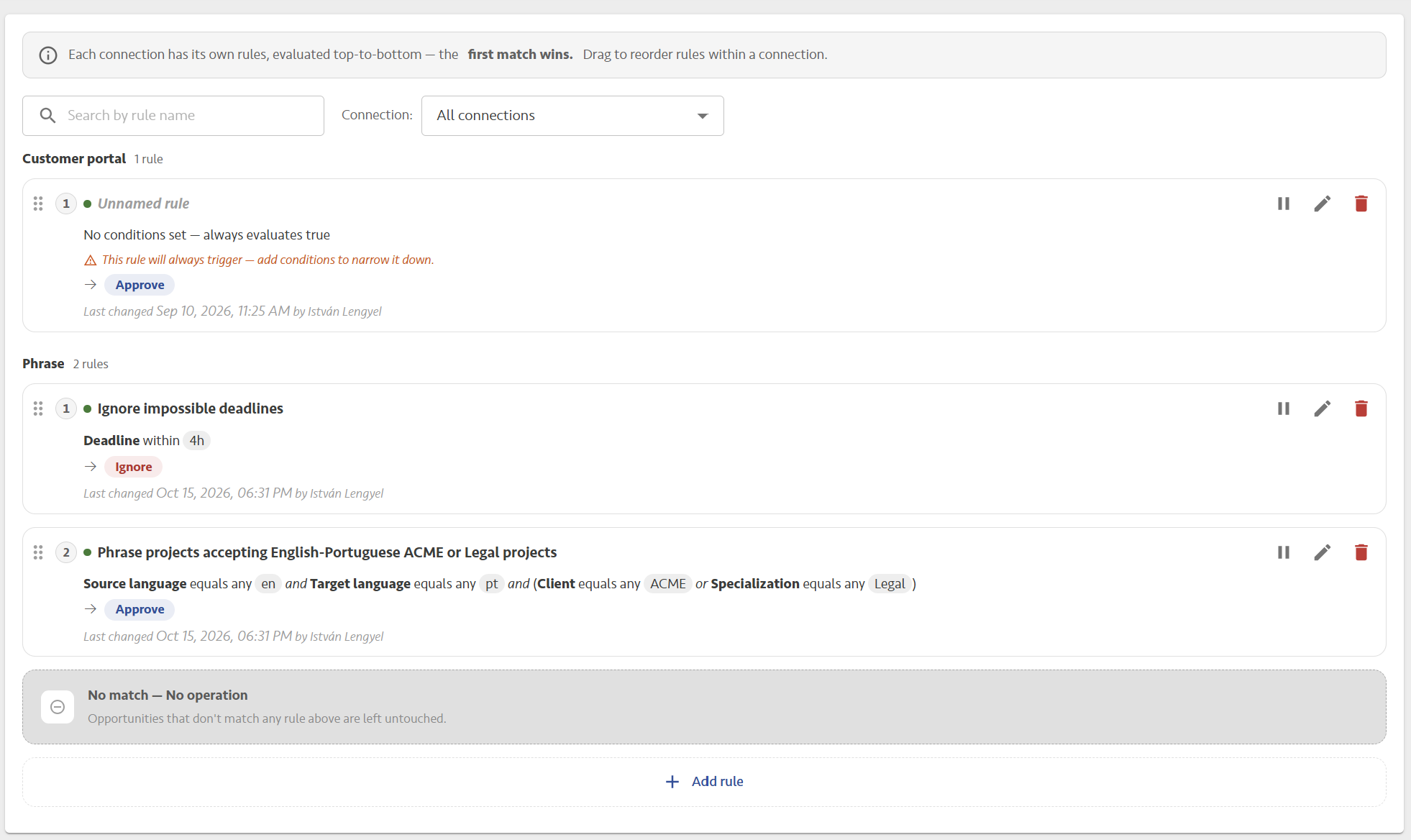
In order to set up the rules, in the profile menu click on Set up auto-approve rules. The rules are grouped by connection: each connection has its own list. Each rule in the list shows its position, name, conditions and result, and the date it was last changed. Use the icons on the right to pause, edit or delete a rule, and the search field to find a rule by name. Changes in the list, such as reordering, pausing or deleting rules, only take effect after you click Save changes. Discard changes undoes them.
To create a rule:
- Click Add rule, and in the dialog select the Connection whose projects you want to automate.
- Give the rule a descriptive name, for example "Small EN-PT projects 24h+". The name is required, and it is the only description the rule has, so make it clear what the rule does.
- Under Conditions, set the conditions a project must meet (see below).
- Under Then, select Approve or Ignore. Approve starts the approval process described above. Ignore does not reject the project in the origin system: it only removes it from the Approvals pending list in BeLazy.
- Click Create rule. If Create rule is grayed out, check that the rule has a name and that every condition has a value. When you edit an existing rule, click Save instead.
Inside Conditions, Add rule adds a condition (not a new auto-approval rule), and Add group adds a group of conditions. For each condition, select a field, then an operator, and enter the value. The fields include Source language, Target language, Specialization, Deadline, Client, Client CAT tool, Project manager first name, Project manager last name, Weighted quantity, Project (job/offer) status, Name, Project name and Workflow. You will find that values here are not pre-populated. You have to add them yourself, and once the value has been entered, it needs to be added to the list (click the + button or press enter) and then selected.
The available operators depend on the field:
- Text fields, such as Client: Equals any, Equals none, Is empty, Is not empty, Contains, Does not contain, Starts with, Ends with and Regex matches.
- Weighted quantity: Equals any, Equals none, Is empty, Greater than, Greater than or equals, Less than, Less than or equals and Between.
- Deadline: More than or Within.
With Equals any, you can enter more than one value, and those are evaluated with an OR. For example, the condition Target language Equals any EN, FR, LT means that the target language of the project must include either EN, FR, or LT. A project with 4 target languages RO, FR, ES, JP will match on this condition, because these four languages include (at least) one of the values: FR. Equals none is the opposite: the condition is met if none of the values matches.
Values are case-sensitive, so enter them exactly as they appear in the Approvals pending list.
For Deadline, you can choose More than or Within, and enter the time as follows:
- 1h 30m: one hour, thirty minutes
- 1d: one day
- 30s: thirty seconds
- 1d 12h: one day, twelve hours
Within matches projects whose deadline is closer than the time you enter: Within 4h matches projects due in the next 4 hours. More than matches projects whose deadline is further away: More than 1d matches projects due more than a day from now.
If there are no pre-populated values, what to add?
First, check your non-automated connection, and look for projects you want to automate. Copy out the values that are displayed by BeLazy in the Approvals pending list. The auto-approval functionality works with the data of the original connection, not with the mapping you set up for the Business Management Hub during the automation setup. In the auto-approval configuration, you need to use the same values as the ones appearing in the list.
Combining conditions: And, Or and groups
Each group of conditions starts with an And/Or selector, which applies to everything in that group:
- And: the project must meet all conditions of the group.
- Or: the project must meet at least one condition of the group.
The conditions of a rule form the outermost group. Click Add group to add a group inside it. The inner group has its own And/Or selector, so you can mix the two, and it can contain further groups. For example, to approve EN-PT projects that either come from a given client or are legal projects, set up the conditions like this:
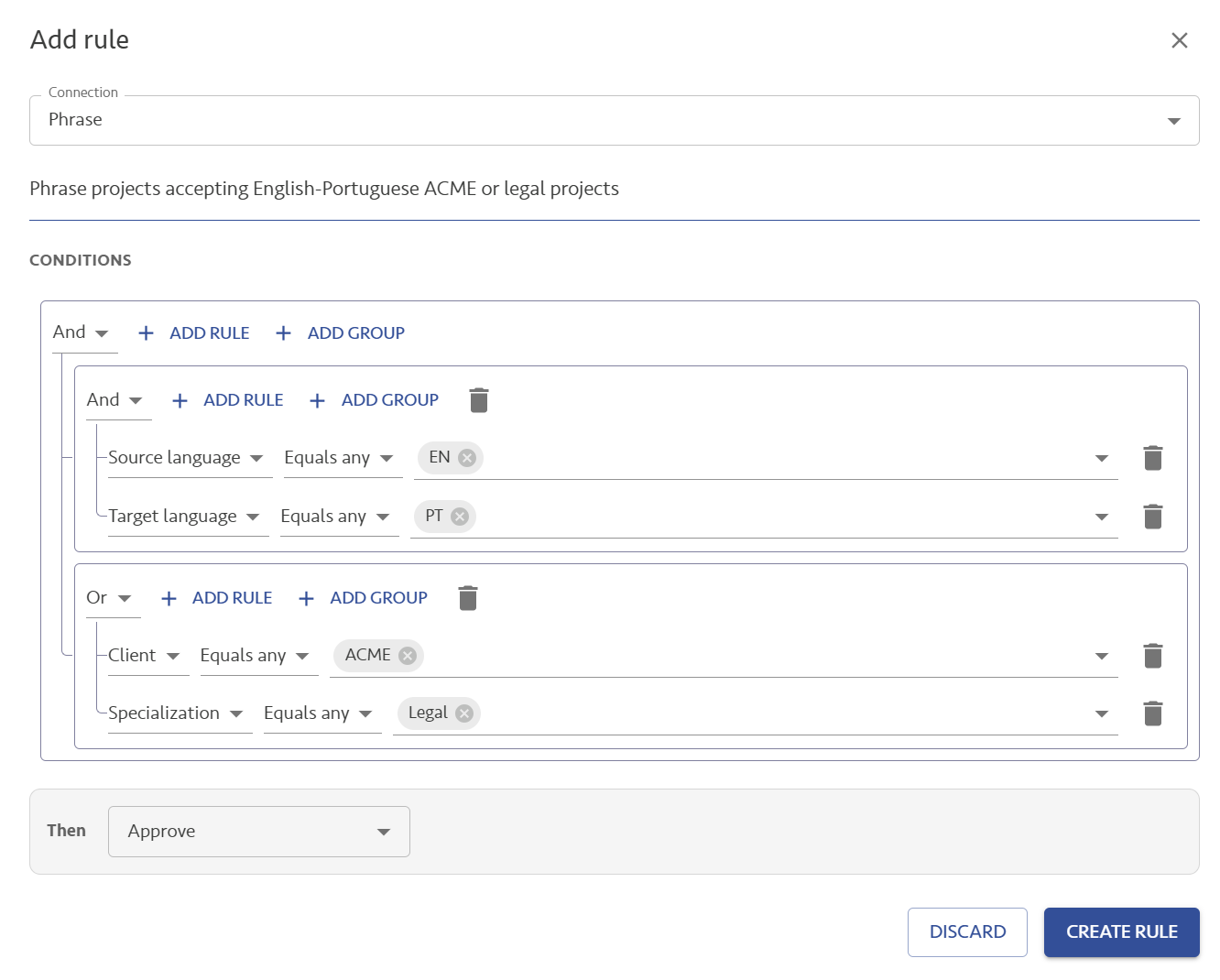
Without the group, you would need two rules with the same result: one for the client and one for the specialization. For several values of the same field, you don't need a group: Equals any already evaluates its values with an OR.
Execution order: the first match wins
Each auto-approve rule relates to one connection only. BeLazy evaluates the rules of a connection from top to bottom, and the first rule whose conditions the project meets decides what happens to it. Processing stops there for that project: the rules below it are not evaluated. To change the order, drag a rule by its handle to a new position within the connection, then click Save changes. For example, in the rule list above, the Ignore impossible deadlines rule comes first, followed by Phrase projects accepting English-Portuguese ACME or Legal projects. With this order, ACME or legal English-Portuguese projects with a deadline within 4 hours are not approved: the Ignore rule is evaluated first, and as it matches, it removes the project from further evaluation. If you reverse the order, these urgent projects are approved, because the Approve rule is evaluated first and the Ignore rule is never reached for them.
The No match line at the end of each connection's rules stands for the projects that don't meet the conditions of any rule. BeLazy does nothing with them: they stay in the Approvals pending list, and you handle them manually. A rule without conditions matches every project, and BeLazy marks it with a warning. The rules below it in the same connection are never evaluated, so place such a catch-all rule last.
For some sources there is no real acceptance step, such as the Email Assistant, the BeLazy Portal or TMS projects you set up yourself. Projects from these sources can be auto-approved at all times with a catch-all rule, like the one for the Customer portal connection in the screenshot above, because approval is also a crucial moment in zero-touch project management.
For example, to accept every project but the ones that are in a certain source language, you can create a single rule with Source language Equals none and that language, with the result of Approve. The projects in that language stay in Approvals pending. If you don't want to see them there, create two rules instead: the first one specifying the language with Equals any, with the result of Ignore, and a second one without conditions, with the result of Approve. The first rule will catch all those projects that are in this language and remove them from Approvals pending, and processing stops for those projects. The other projects that do not meet the language criteria go on, and are approved.
To switch a rule off temporarily without deleting it, pause it instead, and click Save changes.