
When a user first logs in via BeLazy, depending on the configuration of the portal, they see a login page or they are immediately taken to the New order page.
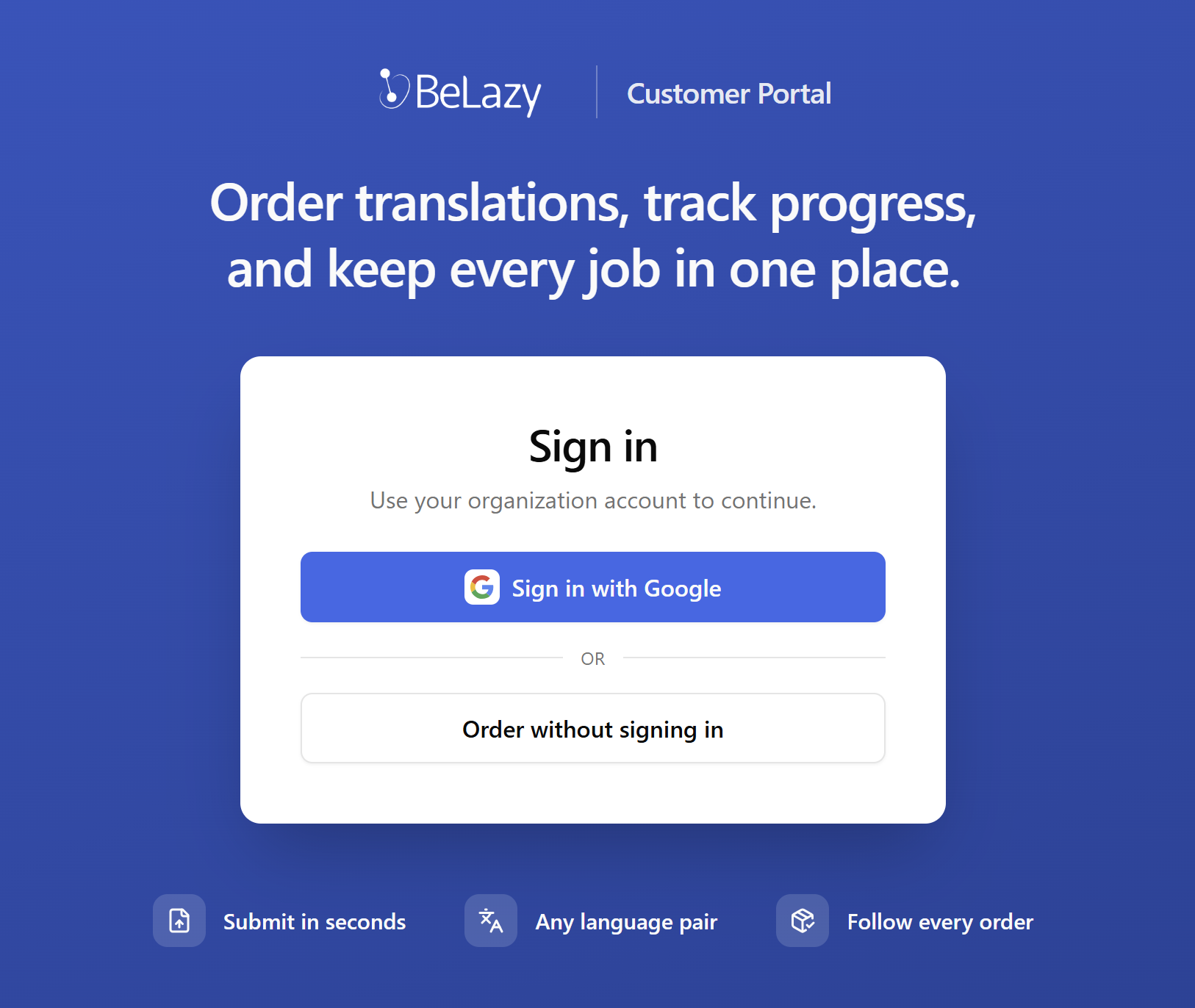
This login page is fully customized to the organization's needs: depending on the configuration, the Order without signing in button is available or not, the sign-in provider may be others than Google, and the colors, logos, and everything else is customizable.
Once the user logs in, they create a new account. The configuration decides if after login the user requires a confirmation from the administrator or not, and the configuration allows enabling and blocking who can reach the portal. In the Administration page, which only administrators have access to from the profile menu, the user Plunet System is currently Pending, which means that the user cannot log in until the administrator sets them to Active.
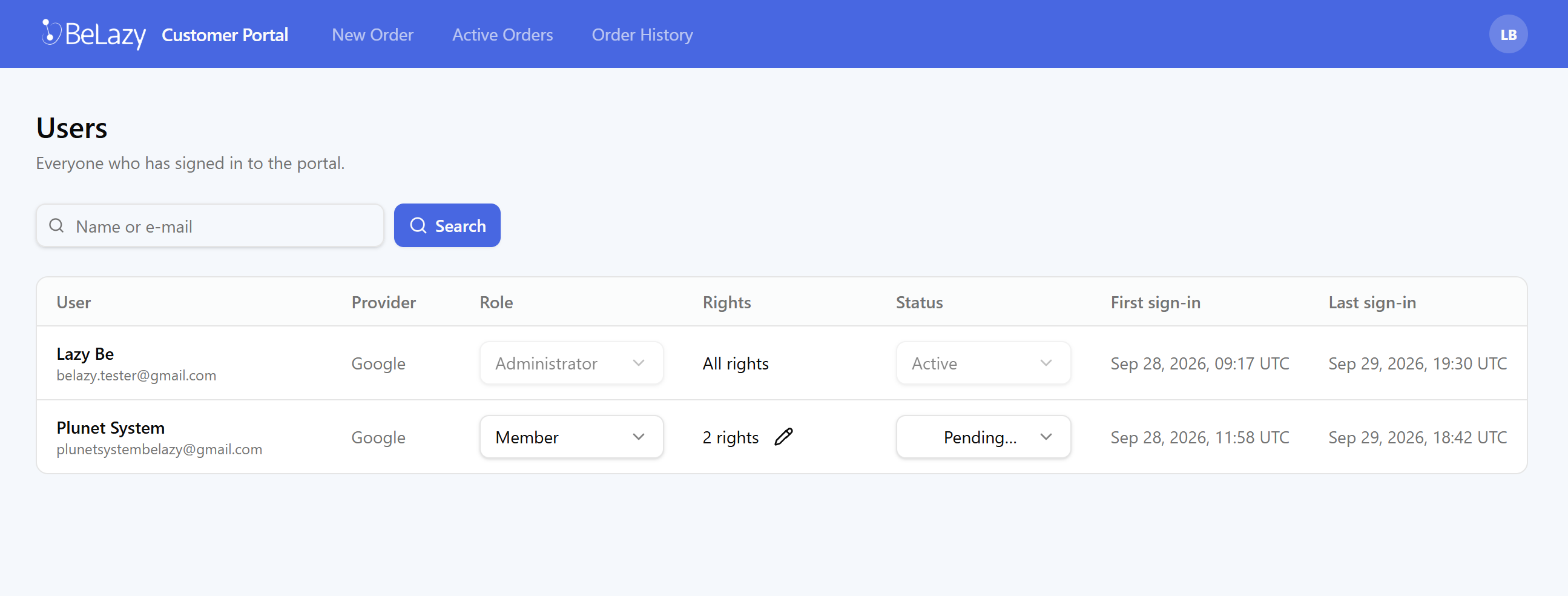
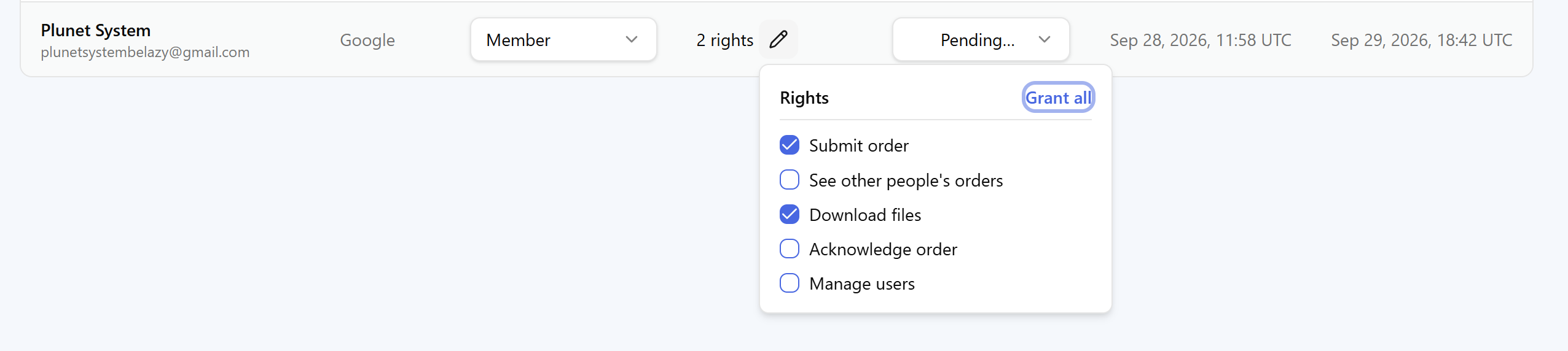
Administrators also set up the rights the user has in this screen:
The user can then submit an order if they have the right to do it:
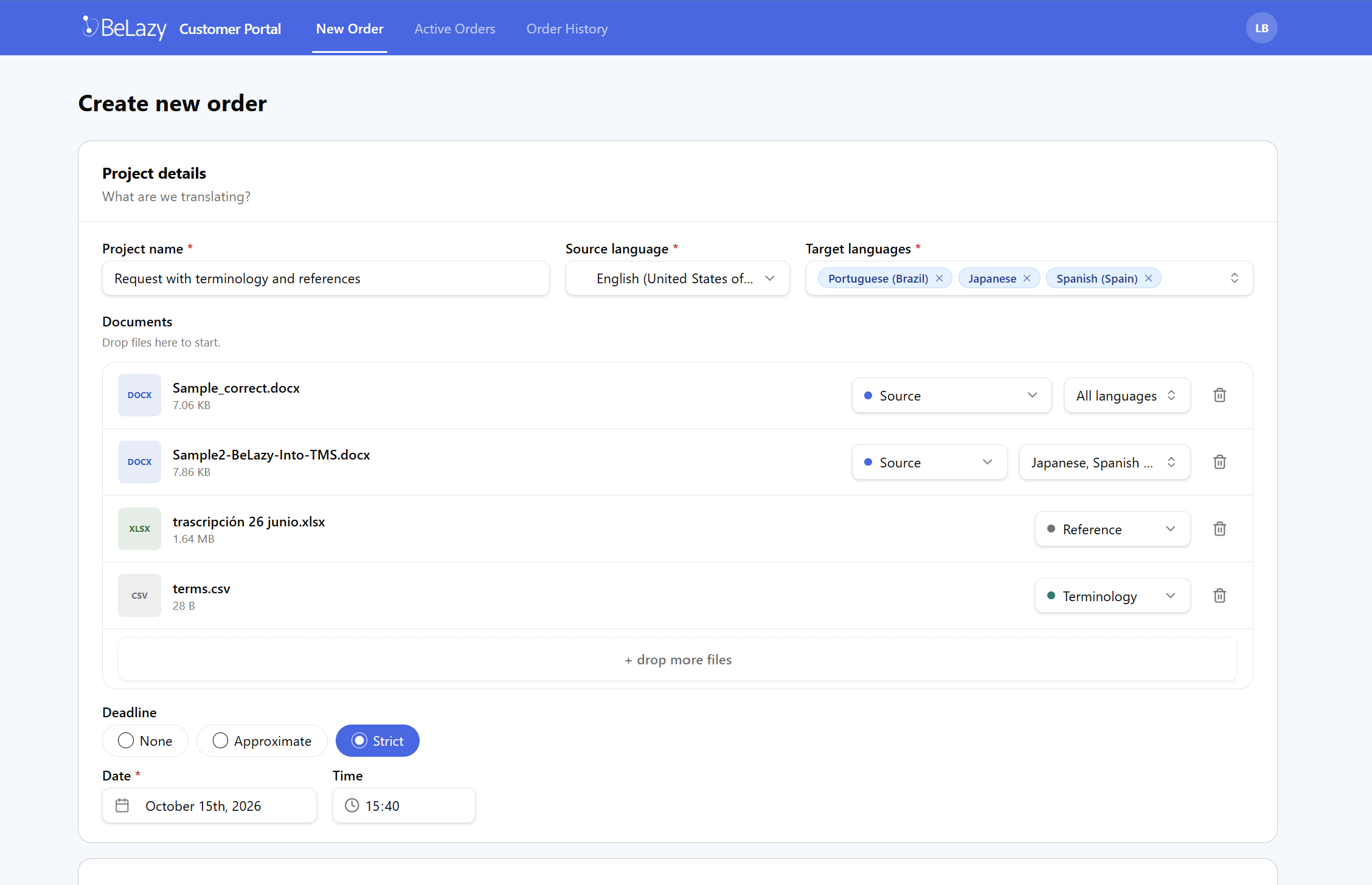
After giving a project a name and selecting the languages, the user updates the documents, selects if each source document goes into all languages or not, and may add references, terminology, purchase order documents, etc. Depending on the workspace setting, deadline may or may not be compulsory.
The second part of the screen allows to specify the rest of the metadata:
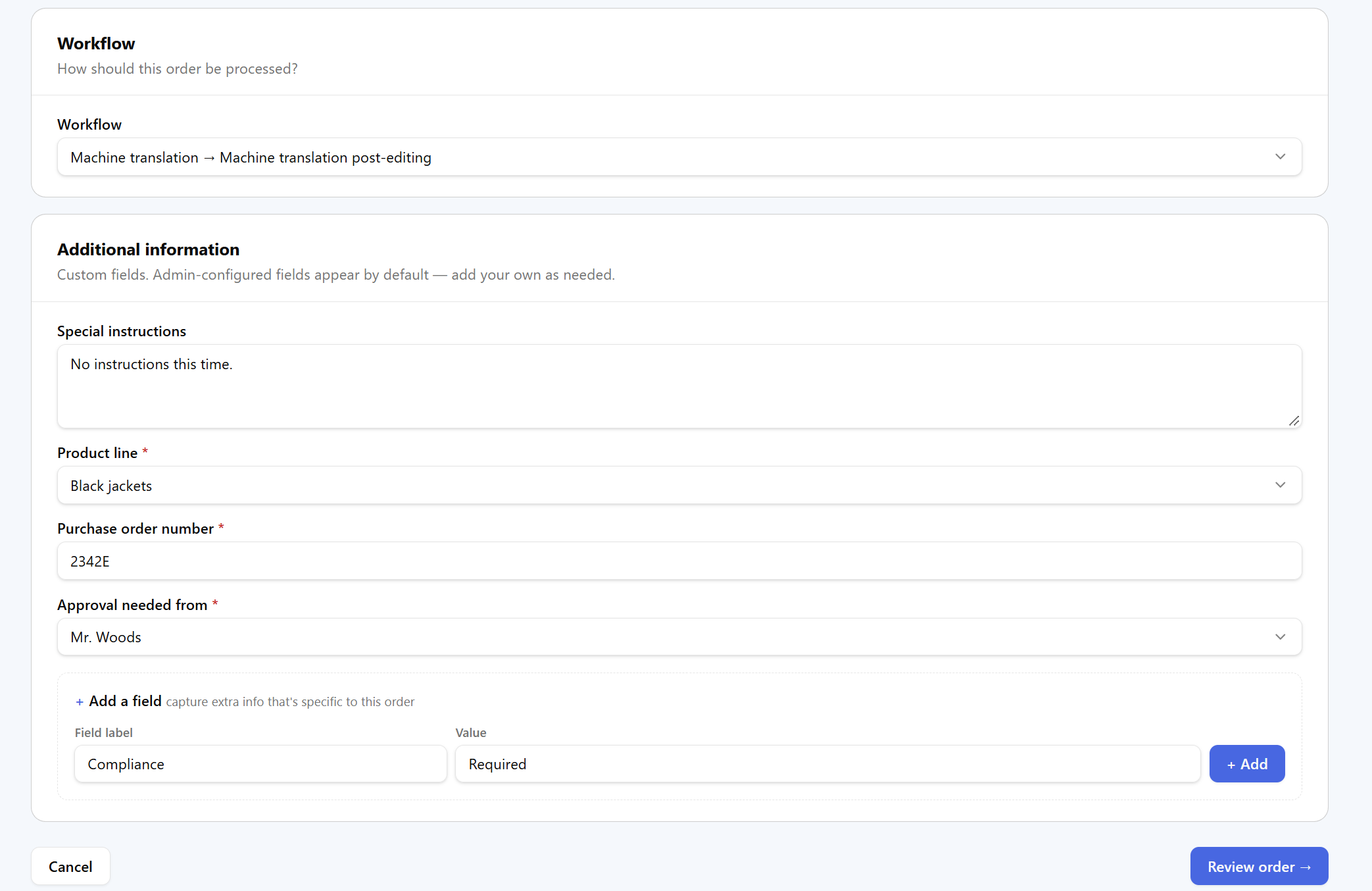
The user selects the workflow from the values set up in the workspace connected to the portal. The values here follow the settings in the previous article. Bear in mind that each workspace, each portal can have fully custom workflow names, so these names are what the client calls the workflow, not what you call the workflow - and can subsequently be mapped to your own workflow nomenclature and settings.
Product line, purchase order number, approval needed from are three values that also come from the workspace configuration. By default the portal allows the user to leave more information - like the Add a field option suggests below. We suggest to leave it like this, because all of these values can later be used for mapping, so customers can help finetune your workflow instead of having to make specific agreements.
Once the user added all the necessary information, they can review the order and submit it afterwards:
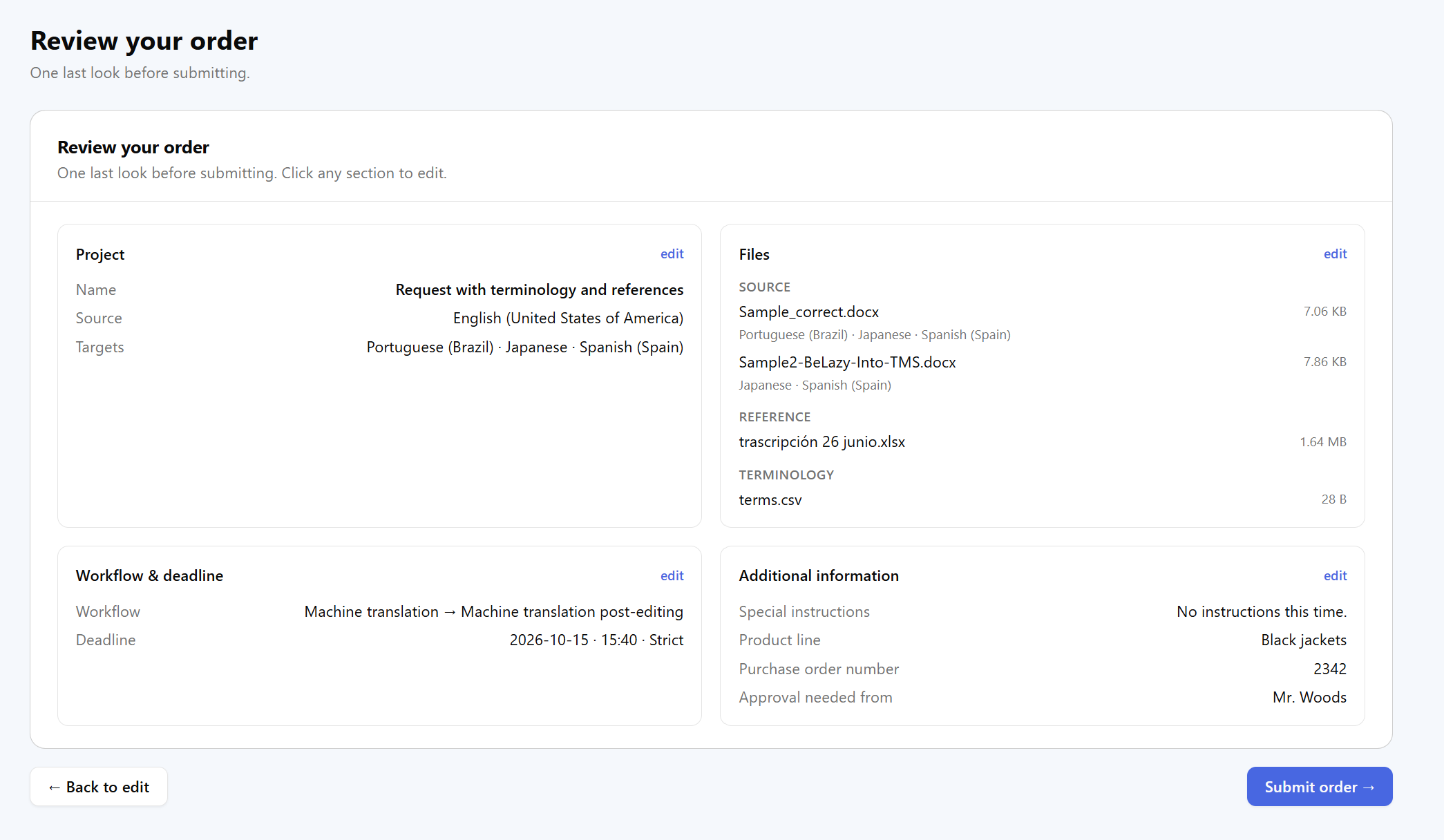
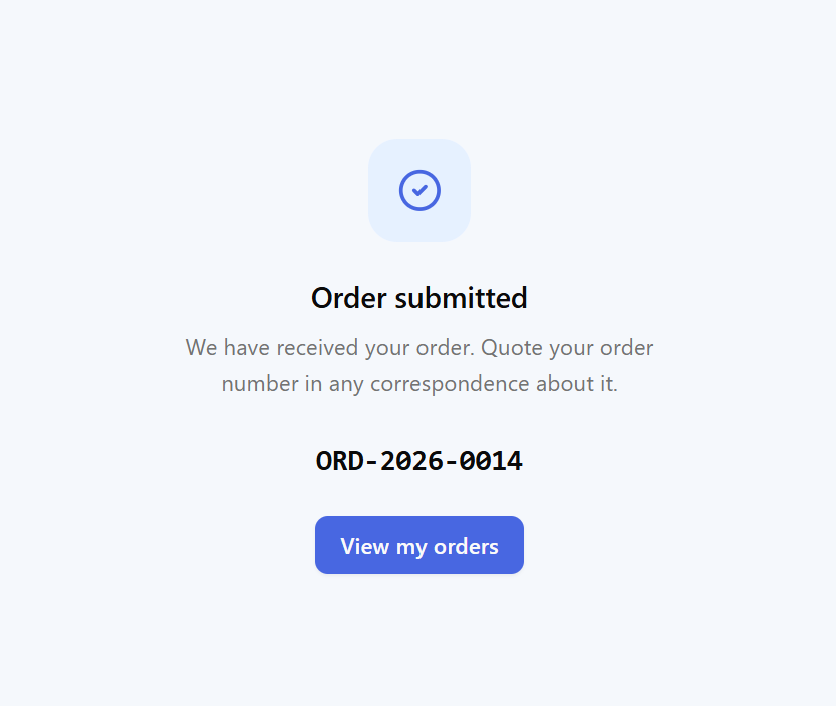
The new order is now pending under Active orders. The pending order becomes In Progress when its opportunity is approved in BeLazy.
The order is then approved in BeLazy either manually or by auto-approval, and its workflow starts there.
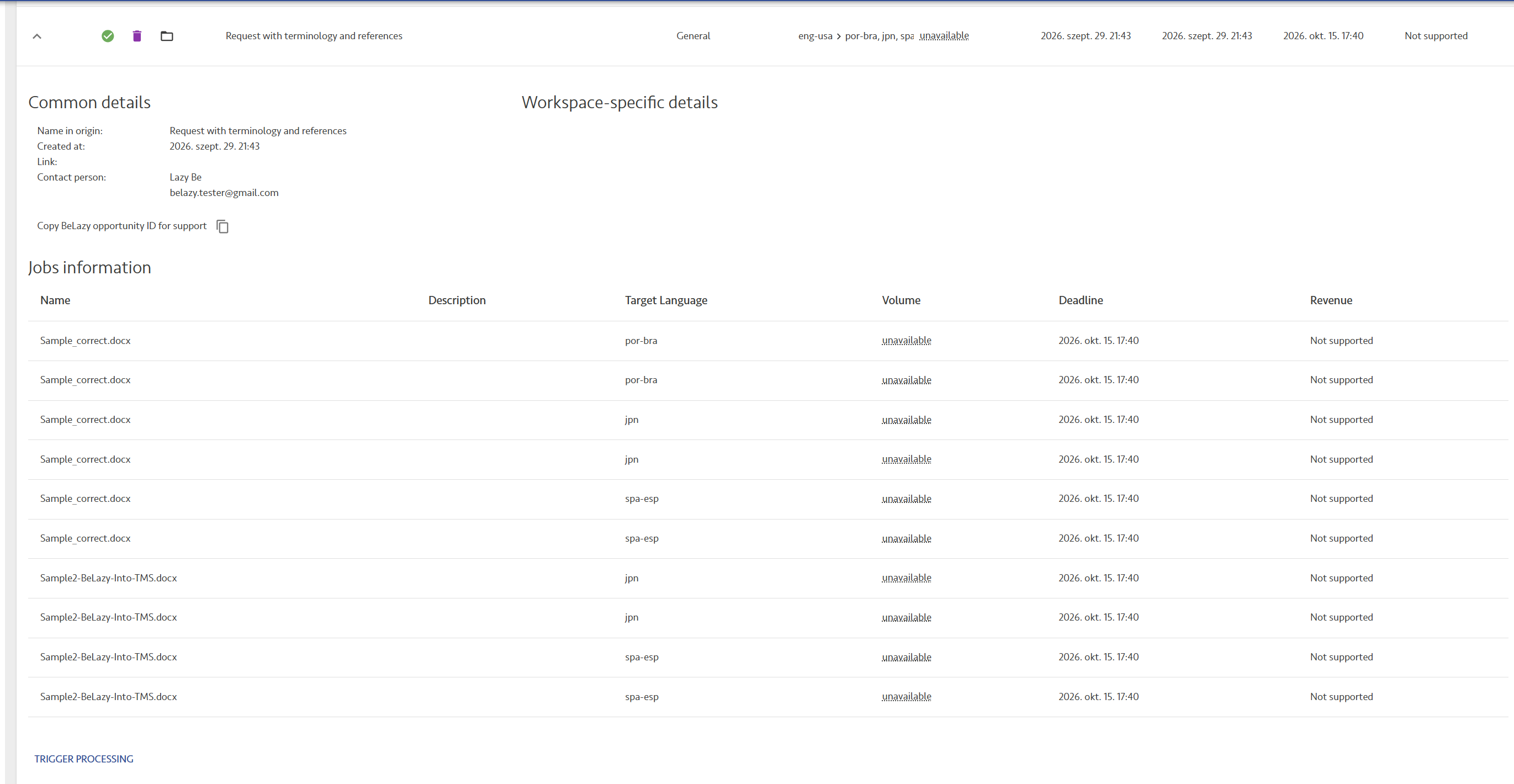
Users can always check the details of their projects:
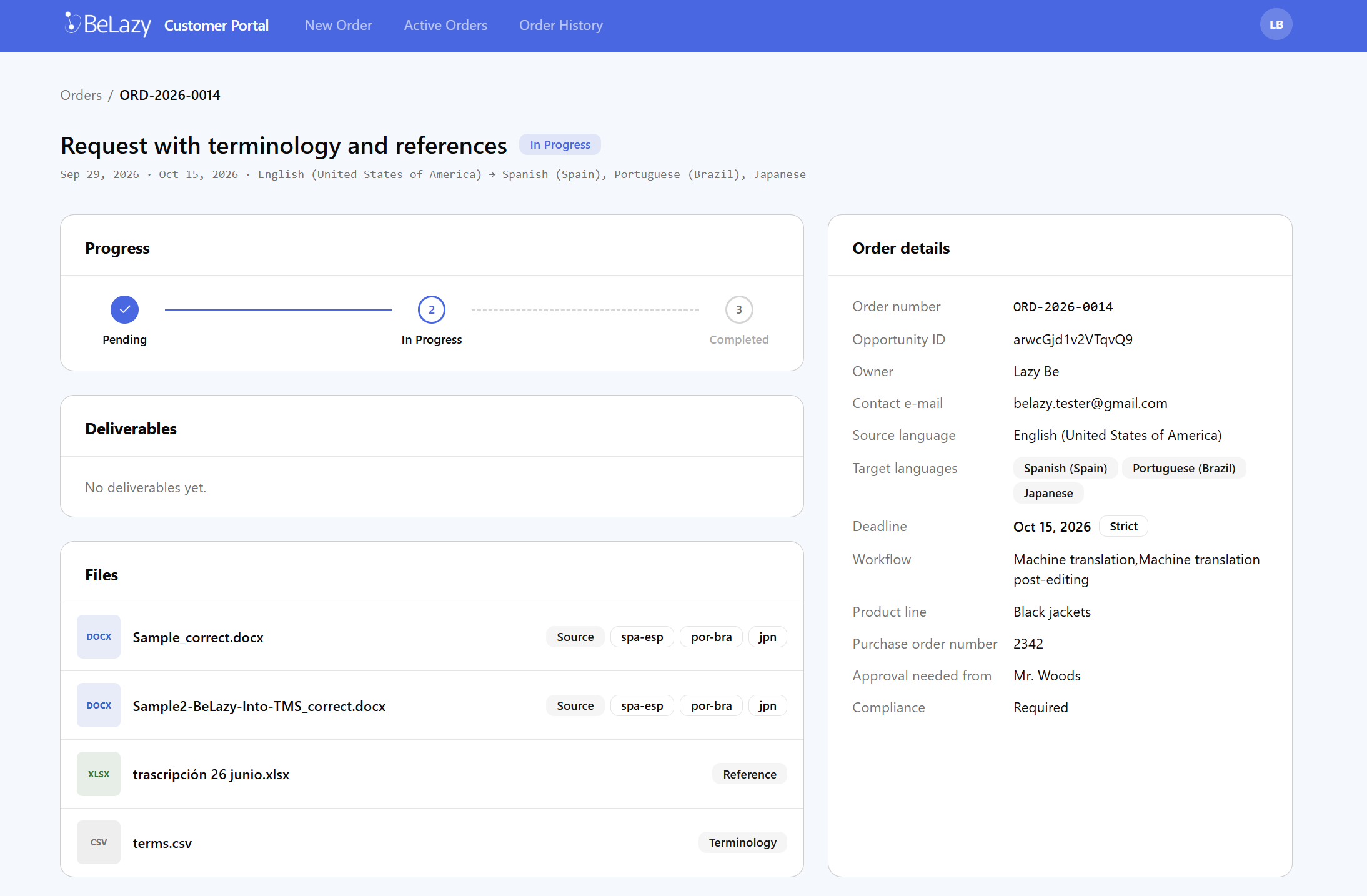
The workflow goes through - in this case as approval is needed from Mr. Woods, it is probably a good idea to have the first BMS job for obtaining approval, and only the second one for actual translation. The final files are exported and uploaded to the project.
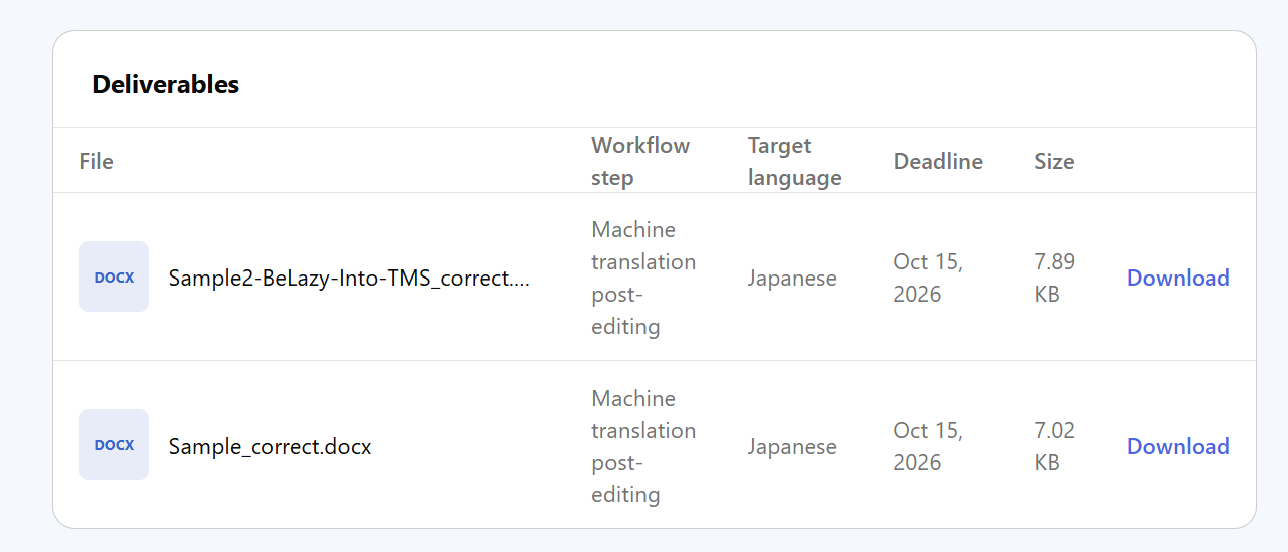
As the project gets completed in BeLazy, the delivered files will appear in the portal if the user has the right to download files:
As we had discussed earlier, all of the portal is customizable, from workspace setup described in the previous article, through authentication providers, guest mode and user approval, colors, logos, fonts, and other visual elements customizable through configuration files, to changing the entire look and feel and extending the functionality via vibe coding.