Automating a TMS configuration: Unit mapping, Rate/analysis mapping, Linguist mapping and Language mapping
Print
Created by: István Lengyel
Modified on: Wed, 30 Sep, 2026 at 8:55 PM
These four mappings in the case of TMS Processing Hub integrations are equally there for any TMS integration BeLazy supports, because these mappings enable BeLazy to know how the TMS concepts are relating to the data in the business management system. The business management system may be Plunet, XTRF or Protemos, in which case the values on the BMS side are downloaded in real time when you are automating the TMS connection. If you are using a custom BMS or if you are not using any BMS, just the Google Sheet integration, you need to have these values entered in the Manage my business management system section before configuring a TMS connection.
These concepts are probably already familiar to you if you ever configured a connection in the Content and Project Hub after configuring a business management system. As in the TMS Processing Hub BeLazy creates the TMS project rather than receiving ready-made projects from another TMS, these mappings need to be done between your preferred TMS and BeLazy as well.
Unit mapping
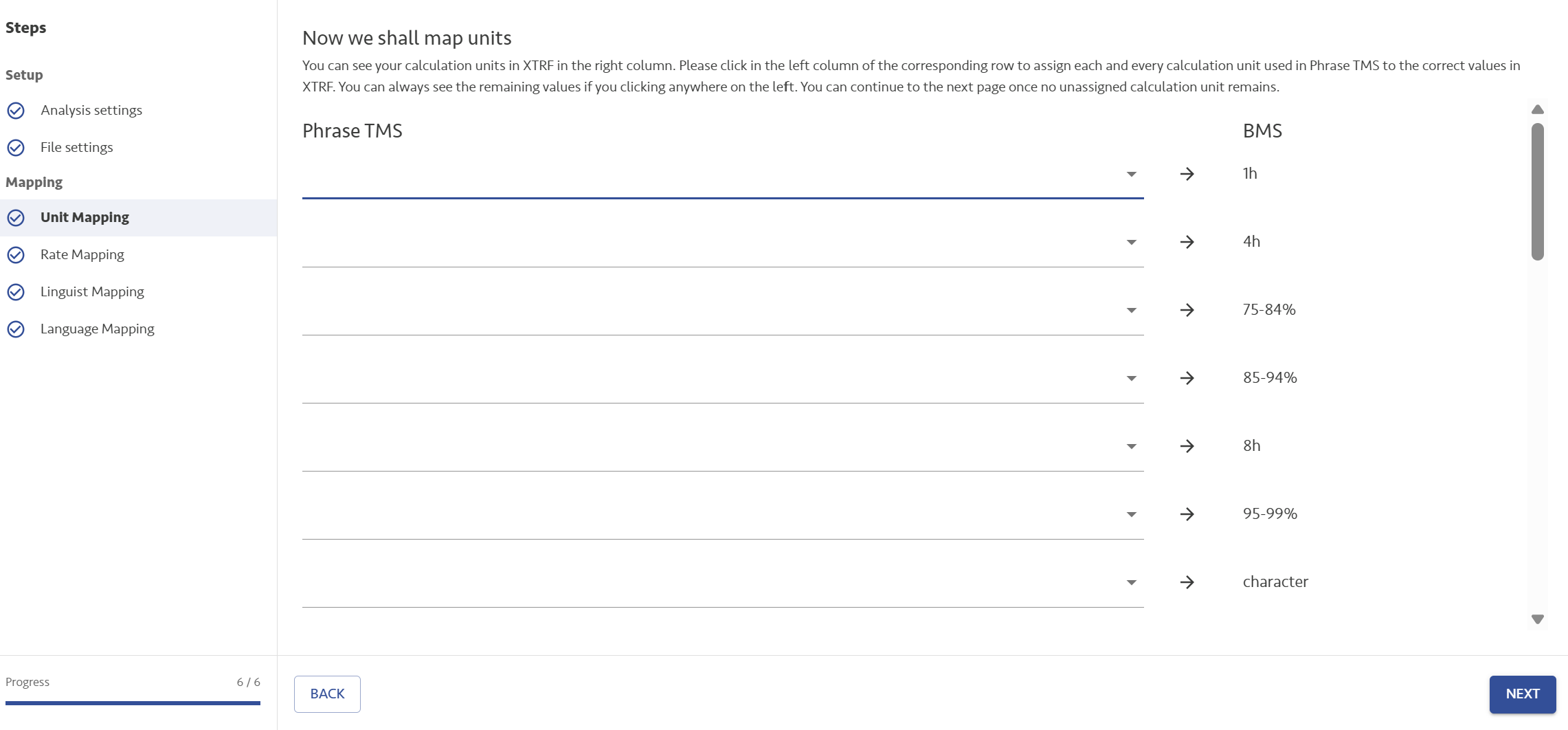
Translation management systems normally all only work with one unit, word. Select the right value that your business management system calls a word. For example, Protemos calls it Word. In XTRF it is called Source word by default. In Plunet it is probably called Words Translation No Match. But these are all configurable values, that is why you need to do this simple mapping once.
Rate mapping (XTRF, Protemos, custom BMS, no BMS)
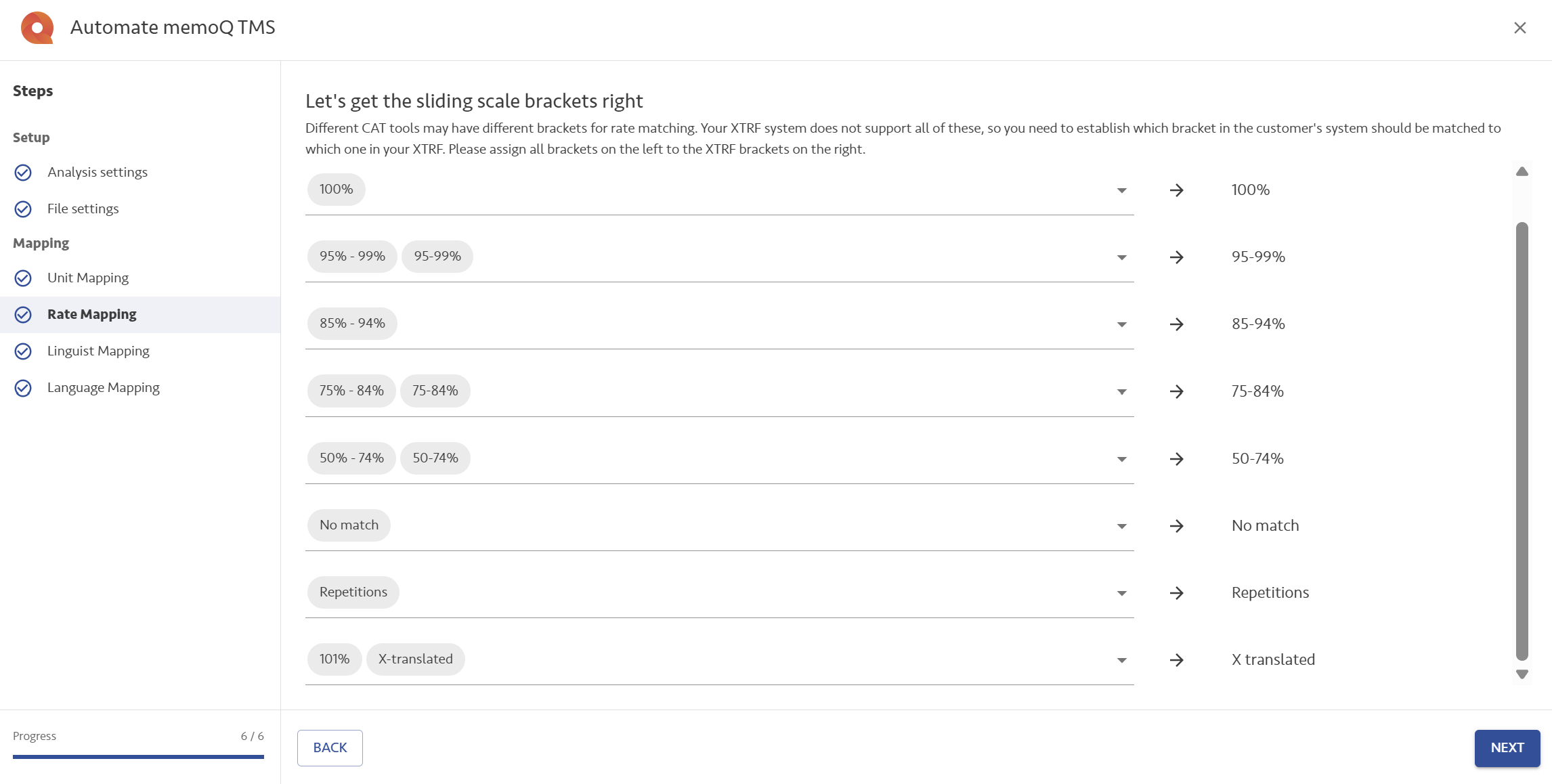
Rate mapping matches the possible values from the TMS rate card to the values of the BMS rate card. XTRF offers the categories that you can find in the price profiles under the Other CAT grid. Protemos offers the categories of SDL Trados 2017 (cross-file reps + internal fuzzy + locked). Custom BMSes offer the rates that you have entered under Manage my business management system or via the API.
Place all the different match rates on the left next to their equivalent in the BMS. You can map more than one unit on the left (TMS units) to one unit on the right (BMS units). In the example below both 101% and X-translated coming from memoQ are mapped to X translated in XTRF, because usually neither is paid or charged for, or if they are, the percentage is the same.
Workflow based analysis mapping (Plunet only)
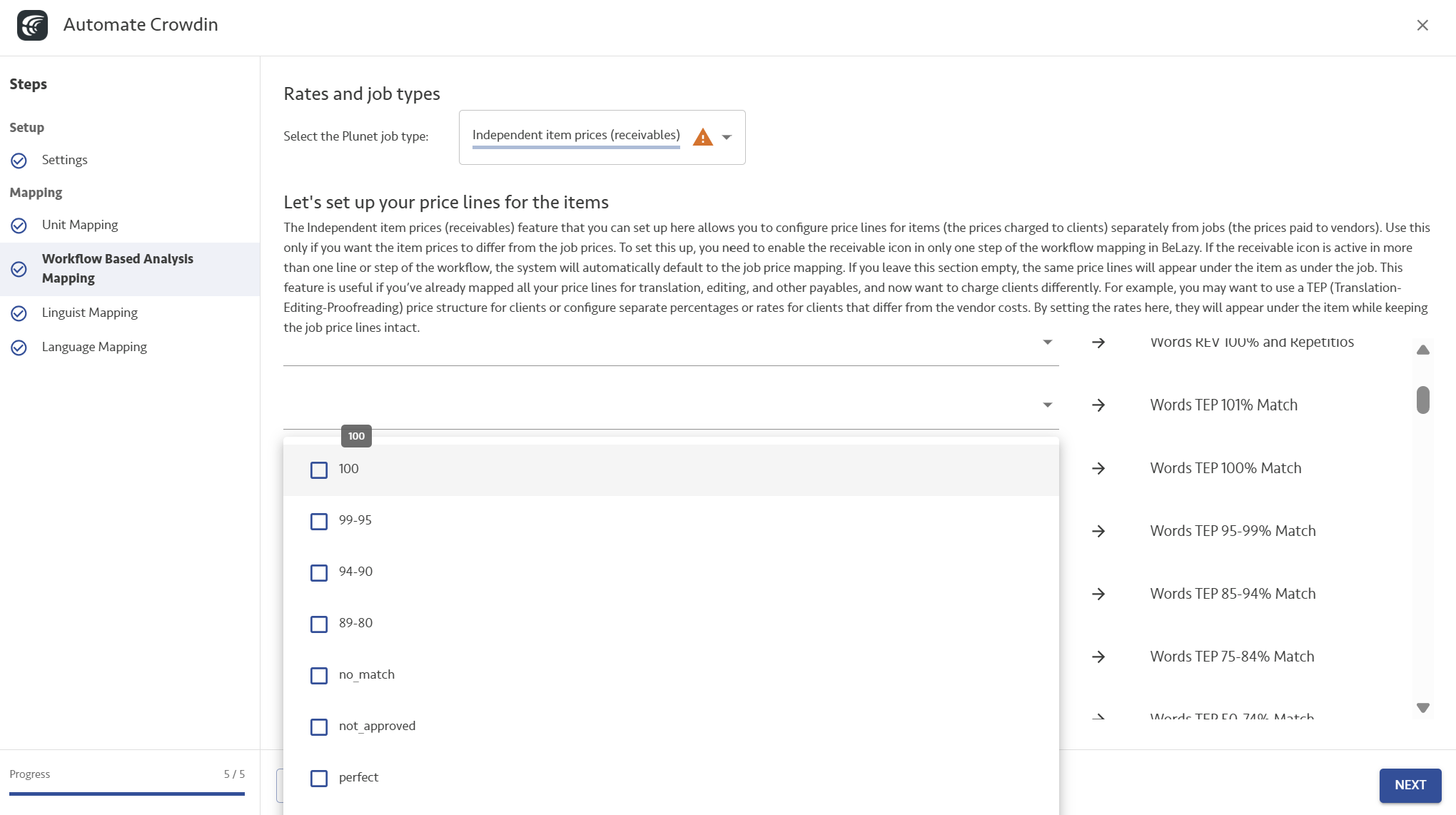
Plunet works with price lines, but does not have the concept of fuzzy rates. Instead, price lines can be assigned to jobs, and for each job type in your workflow you have to do a separate mapping if you want to enable payable creation (or receivable creation). Select the different Plunet job types where you will implement creating payables, and select the match categories on the left from the TMS, and assign them to the right price line for that job type on the right. This is exactly the same as in any Content and Project Hub project integrated with Plunet, so you will probably already be familiar with this. Make sure that the prices you want to fill are assigned to these job types in Plunet, otherwise they won't show on the list. You also have the Independent item prices (receivables) option in the Plunet job type selector. If you select this, and do the assignments, instead of using the price lines for the corresponding job type, BeLazy will create the analysis for the item using these price lines. For example, if your first job in the workflow is Translation, but you want the client price to reflect TEP rates, you would use this option and assign the corresponding match rates to the TEP-based price lines.
Select all the job types you want to create payables or receivables for, and place all the different match rates on the left next to their equivalent in the BMS. You can map more than one rate on the left (TMS rates) to one price line on the right if you want. You do not need to perform this configuration for job types that are not paid, and if you make a mistake, a notification will allow you to resolve the missing mappings.
Linguist mapping
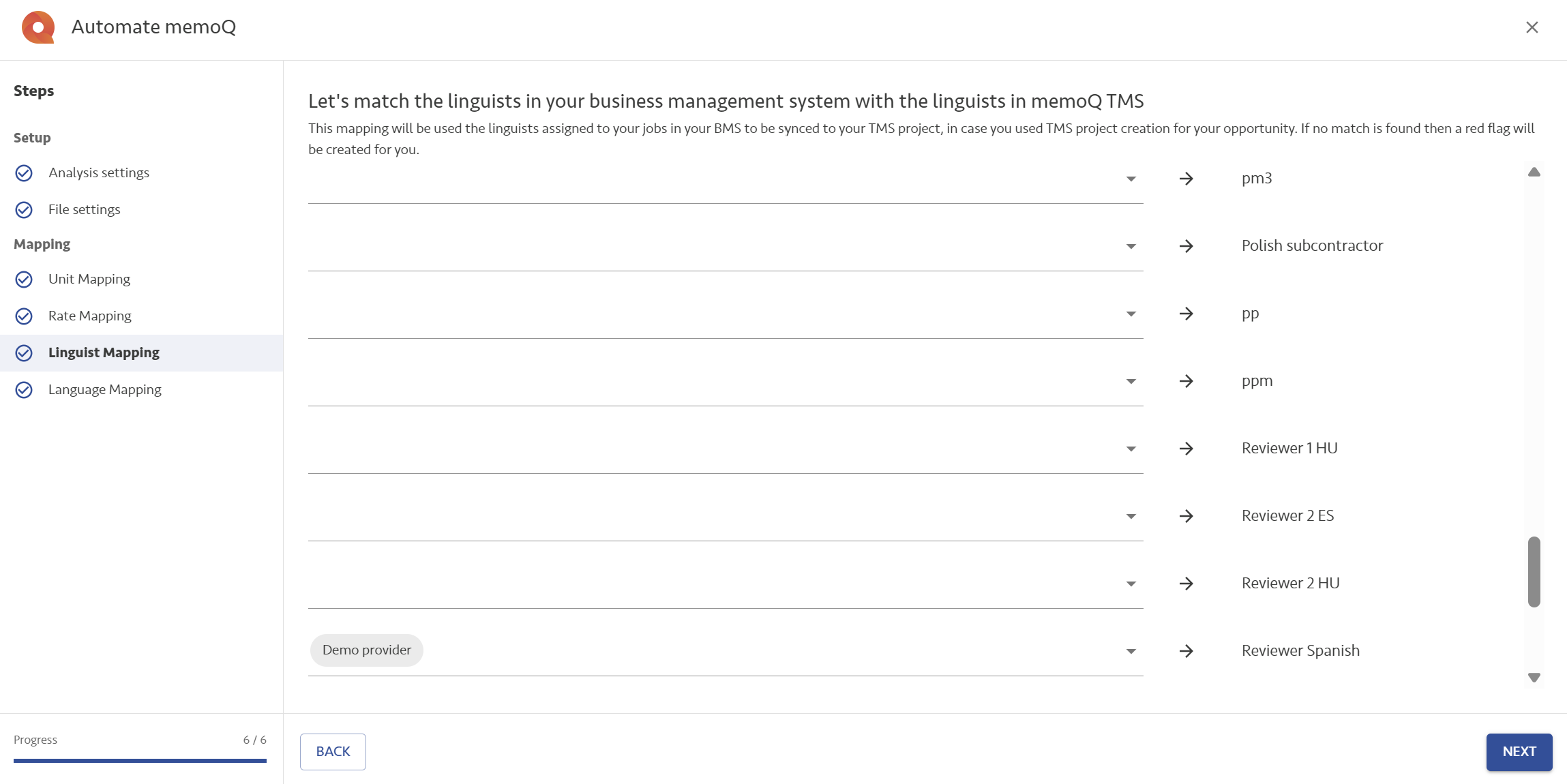
In the TMS Processing Hub context you always map the vendors from the business management system list (which, in the case of no BMS or custom BMS, is the list of vendors from Manage my business management system) to the TMS users, because not every BMS user may have an account in the TMS of your choice. In the TMS Processing Hub (Into TMS) projects, the linguists are always added to the TMS from the business management system or the Google Sheet. As you orchestrate this integration, the vendors are always in your main system, which is the BMS (or Google Sheet). The TMS user list is automatically listed on the right, so select one TMS user you want to fill out and click on the corresponding line and select the corresponding BMS user. BeLazy does not create users in the TMS, this has to be done before.
Language mapping
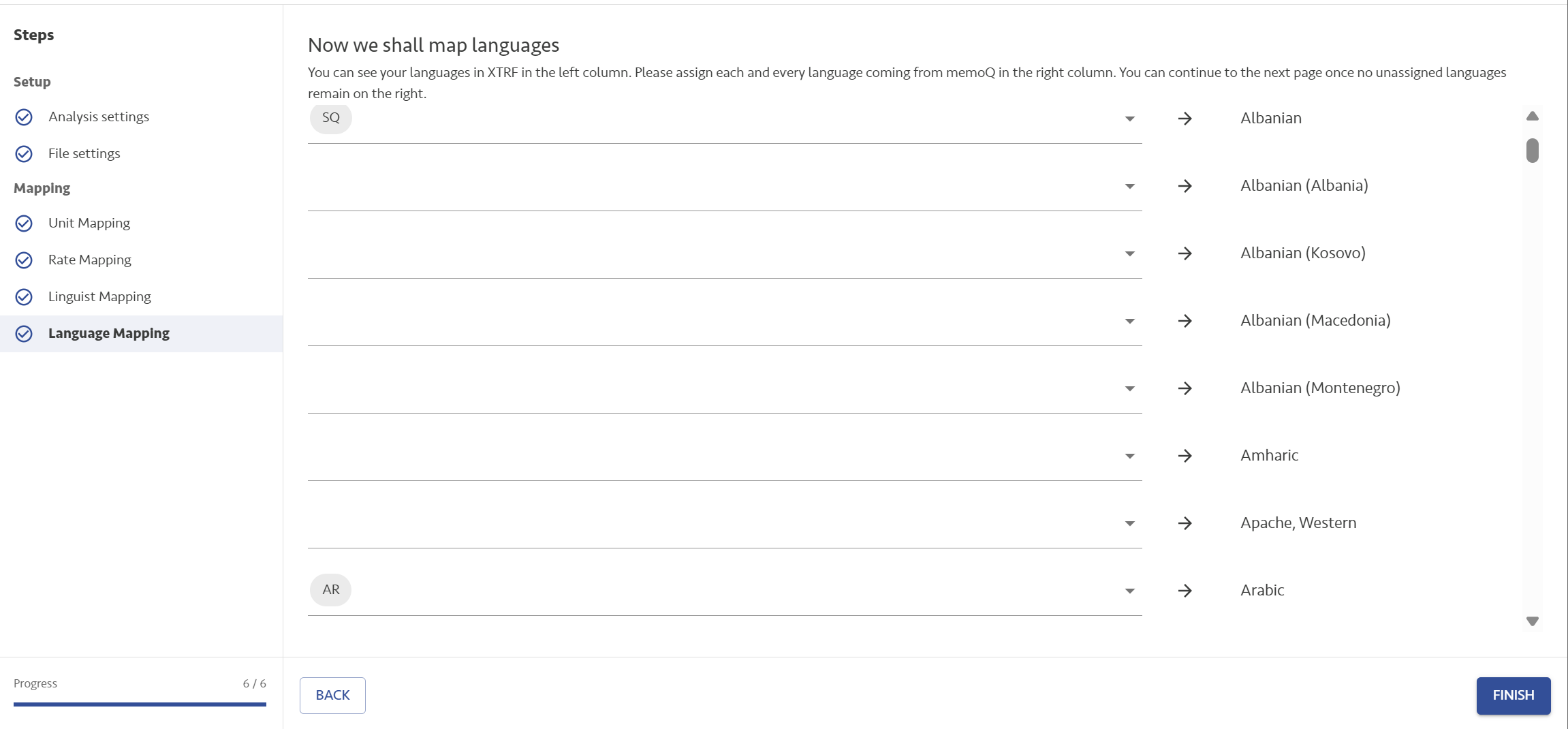
On this screen you see the BMS languages on the left, and the TMS languages on the right. Normally both the BMS and the TMS have many languages configured, and many of these correspondences can be easily resolved by BeLazy. Your last task is to pair up the TMS and BMS languages for the missing languages, in case they are a realistic use case. Do not worry if you miss mapping one - a notification will allow you to resolve the missing mapping the first time it appears in a real project.
István is the author of this solution article.
Did you find it helpful?
Yes
No
Send feedback Sorry we couldn't be helpful. Help us improve this article with your feedback.
