
This article describes the direction where BeLazy imports source content from the Content and Project Hub and creates and manages a project in the memoQ TMS. BeLazy has two memoQ TMS integrations, the other one is picking up content already in memoQ and processing it in a business management system or allowing the translation to happen in another translation management system, which you can read about here.
Use cases:BeLazy supports setting up projects in memoQ TMS from any of the connectors available under the Content and Project Hub. You would typically use this integration if you receive source files from the customers in any of the systems (customer portal, Email Assistant, vendor portal, CMS integration, task tracker integration, or simply the project ingestion API), or if you are receiving projects in another TMS, and would like to process the content in memoQ by exporting XLIFF from the other TMS and importing the translated steps back there automatically at the end of each workflow step.
In this integration use case you are setting up projects in a dedicated memoQ instance, which is typically your preferred TMS, or you are helping your customer with project creation in their system.
The integration:
- creates a project in memoQ based on a project template,
- imports the files received using the file import settings in the template,
- manages and synchronizes data and the workflow between memoQ TMS and the business management system or the Google Sheet project management tool (the Business Management Hub),
- reassigns vendors from memoQ TMS to the business management system you are using and records the memoQ TMS vendor assignment in the Google Sheet,
- reassigns vendors set from the business management system or the Google Sheet to memoQ TMS,
- monitors job delivery in both memoQ TMS and the business management system or the Google Sheet jobs, and closes the job in the other system,
- exports the entire content into XLIFF at each and every workflow step and stores it in BeLazy,
- imports the uploaded XLIFF content back into memoQ TMS when closing a business management system or Google Sheet job,
- allows manual and automated jobs in the workflow.
The integration:
- creates a project in memoQ based on a project template,
- imports the files received using the file import settings in the template,
- manages and synchronizes data and the workflow between memoQ TMS and the business management system or the Google Sheet project management tool (the Business Management Hub),
- reassigns vendors from memoQ TMS to the business management system you are using and records the memoQ TMS vendor assignment in the Google Sheet,
- reassigns vendors set from the business management system or the Google Sheet to memoQ TMS,
- monitors job delivery in both memoQ TMS and the business management system or the Google Sheet jobs, and closes the job in the other system,
- exports the entire content into XLIFF at each and every workflow step and stores it in BeLazy,
- imports the uploaded XLIFF content back into memoQ TMS when closing a business management system or Google Sheet job,
- allows manual and automated jobs in the workflow.
Integration type:
The memoQ TMS integration utilizes the internal APIs of memoQweb rather than the memoQ WS API. This means that every memoQ TMS user has access to this integration. The integration requires a user to be able to set up and manage projects.
Requirements:
You need your Phrase TMS username and password with appropriate permissions.
Setup:
Under Manage my translation management system in the Profile menu, add a new TMS connection:
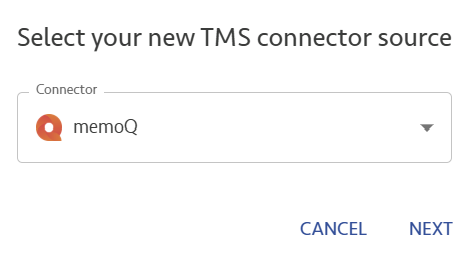
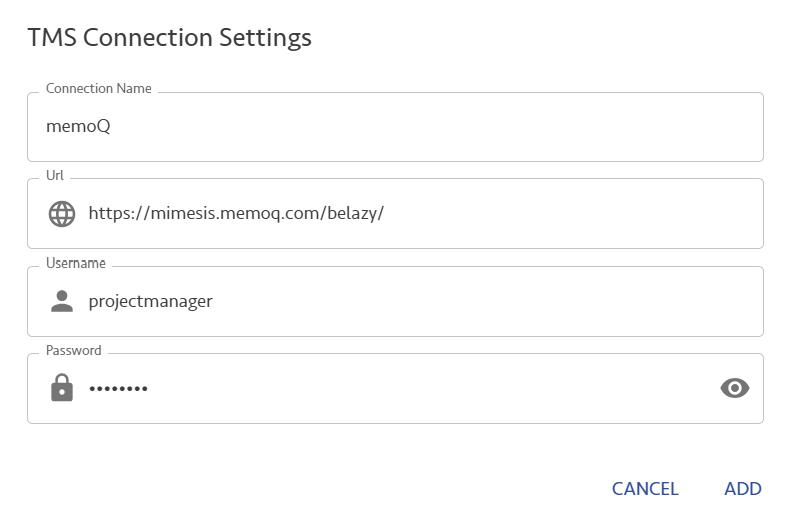
Under the TMS Connection Settings, choose a name for this connector, enter the server's URL with a / character at the end of the URL, and enter your username and password, and click Add.
memoQ-specific configuration:
Click on the cogwheel icon to automate the connection. You will see the following dialog:
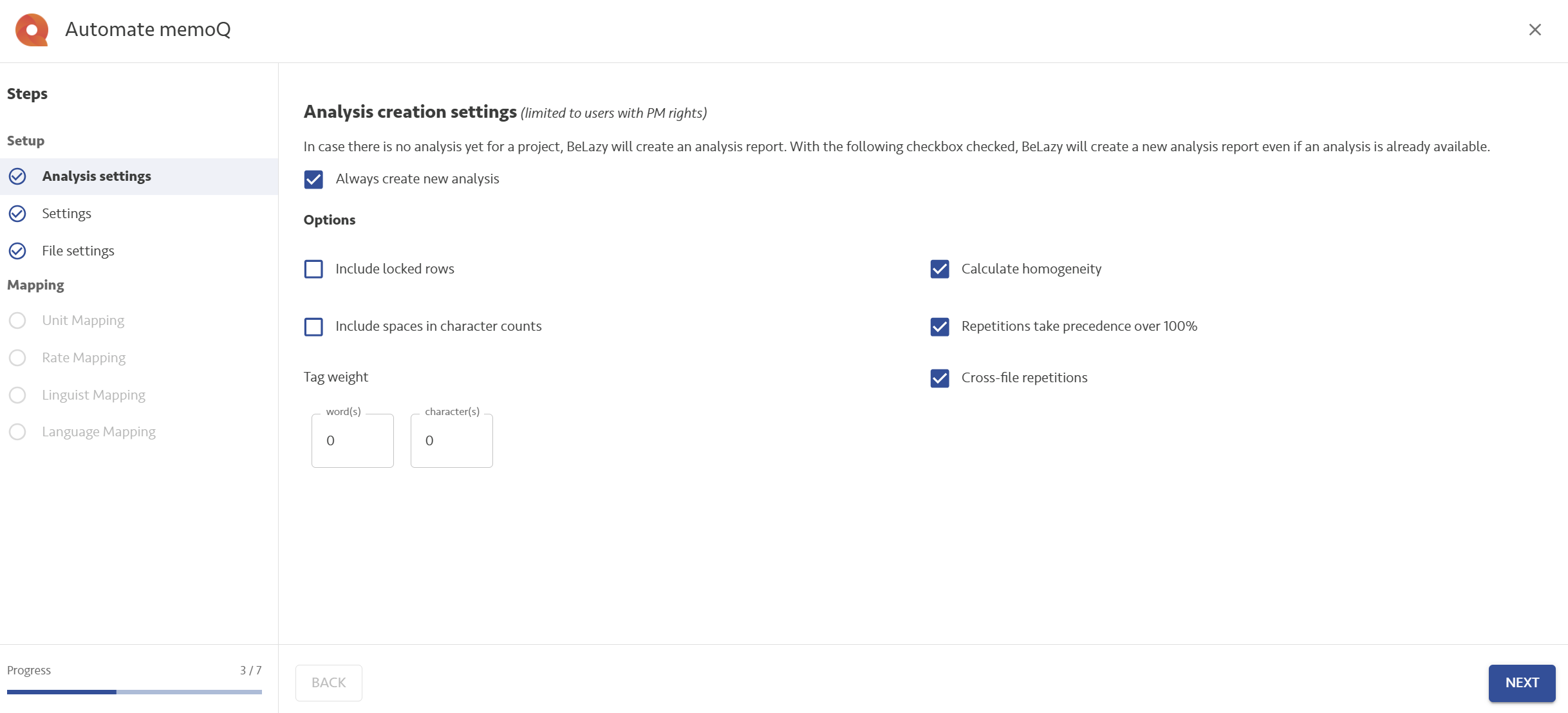
Analysis settings:
Choose between BeLazy analysis or template-triggered analyses. Always create new analysis forces BeLazy to ignore memoQ's own analyses. Leaving this checkbox unchecked allows you to only create an analysis when the template does not create one. The configurations are exactly the same as memoQ's own analysis configurations.
In the case of Plunet, you can also separate the primary (receivable) analysis and the payable analysis settings.
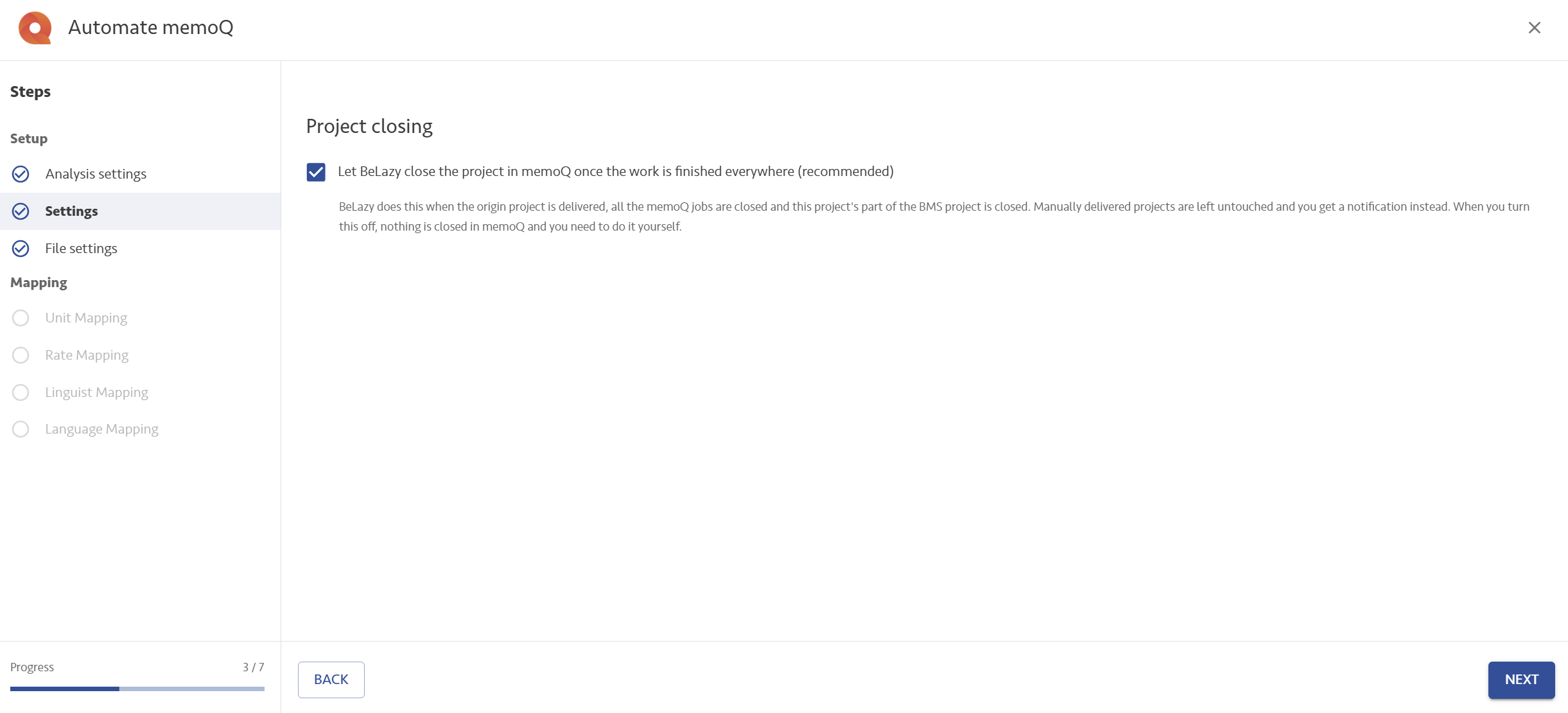
Settings: Enable the Let BeLazy close the project in memoQ once the work is finished everywhere (recommended) option to allow BeLazy not only to create the project, but also close it once everything got completed successfully. This leaves things tidy for you. If there is any error, the project won't close.
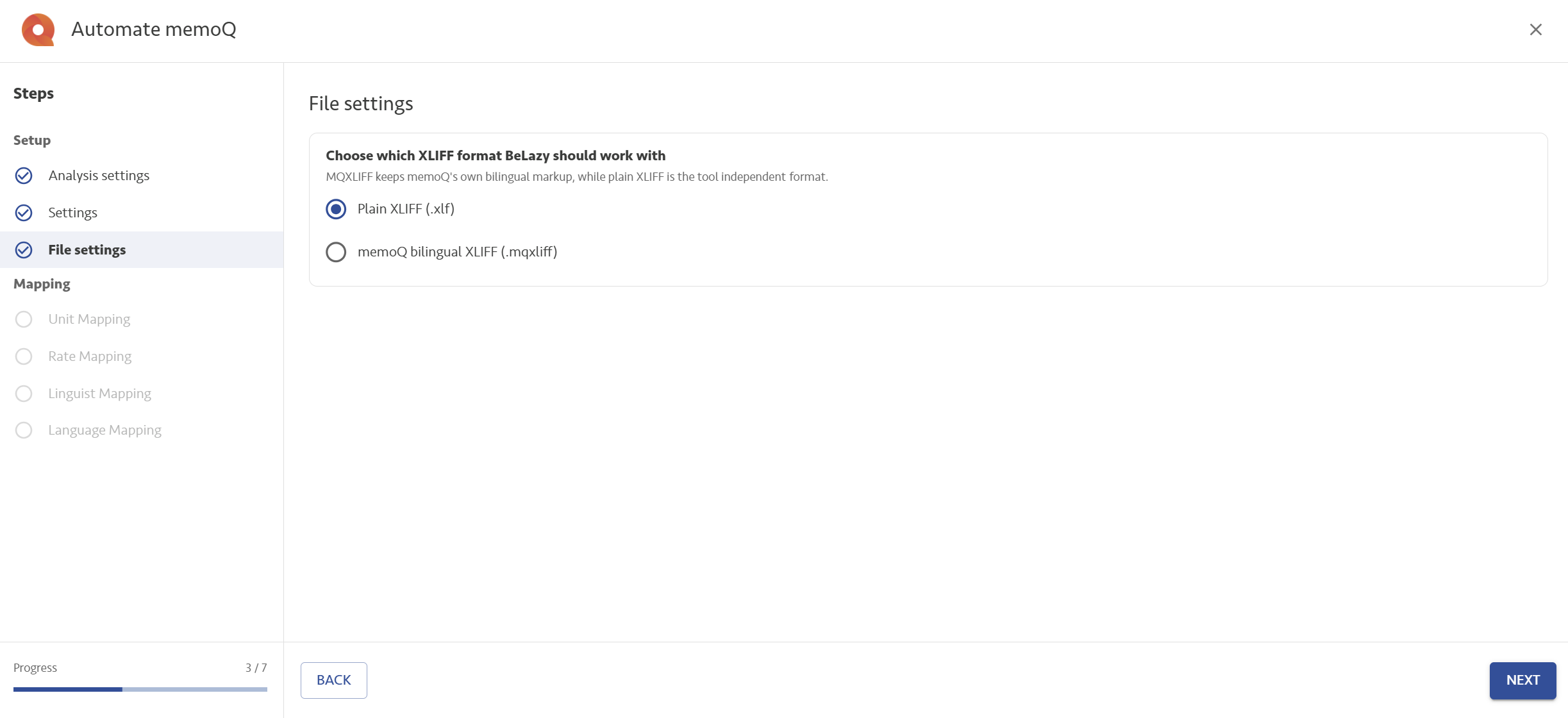
File settings:
- Choose which XLIFF format BeLazy should work with: memoQ can export and import MQXLIFF or plan XLIFF. We recommend the use of MQXLIFF.
Unit mapping, Rate mapping, Linguist mapping, Language mapping: Please see the generic article about these mappings.
Enabling the TMS project creation in a Content and Project Hub connection, and editing the automation:
For generic information, please read the TMS Processing Hub Integrations - Overview article first.
Initial configuration - template mapping:
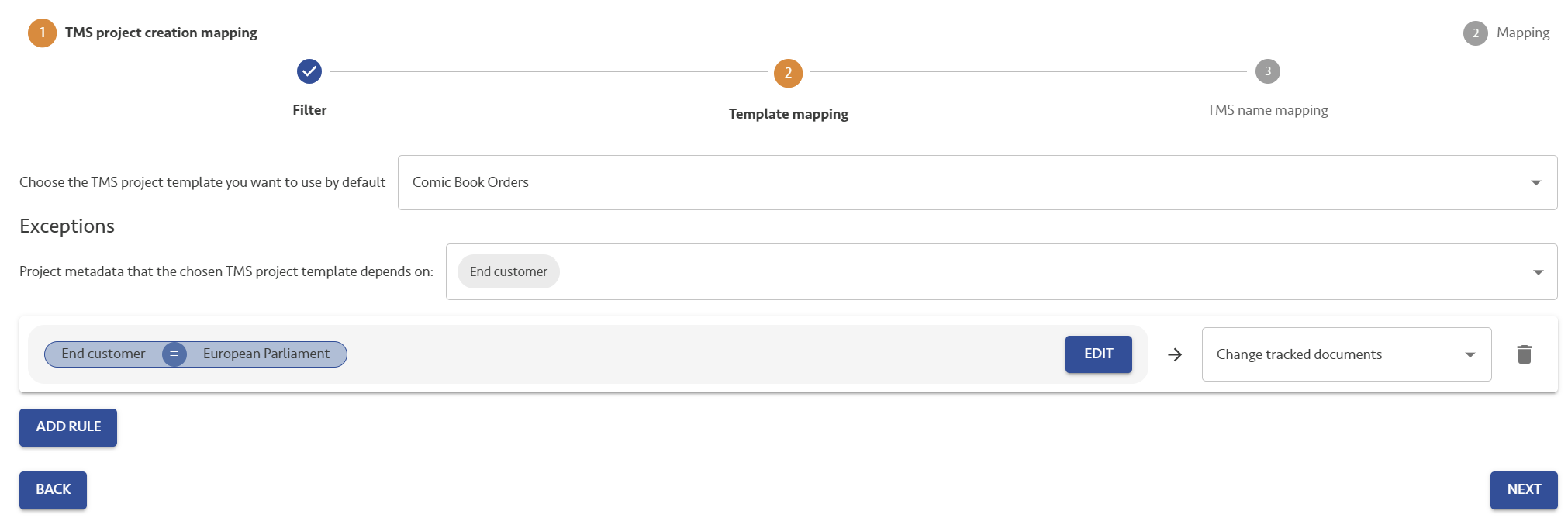
BeLazy always creates projects from memoQ project templates. Project templates in memoQ do not only define all the resources but can also execute automated steps. You will need to have as many project templates as the types of projects you need to create with BeLazy. BeLazy will change the project name, languages and will use the workflow of a template configured under the workflow configuration, not here. Prepare the templates in the memoQ desktop client, and pay much attention to the file format support and the translation memory/terminology/machine translation settings.
You always need to set up a main, standard template, but you can create as many exceptions based on the origin project's metadata as you wish.
The workflow does not come from the template. It is defined later.
Important: memoQ templates can use certain values from the Project, Client, Domain and Subject in the project name, or the project settings. Currently this is not supported. BeLazy will only work well with templates that do not require filling this information. Adding this capability is certainly possible - get in touch if you need this implemented.
Initial configuration - name mapping:
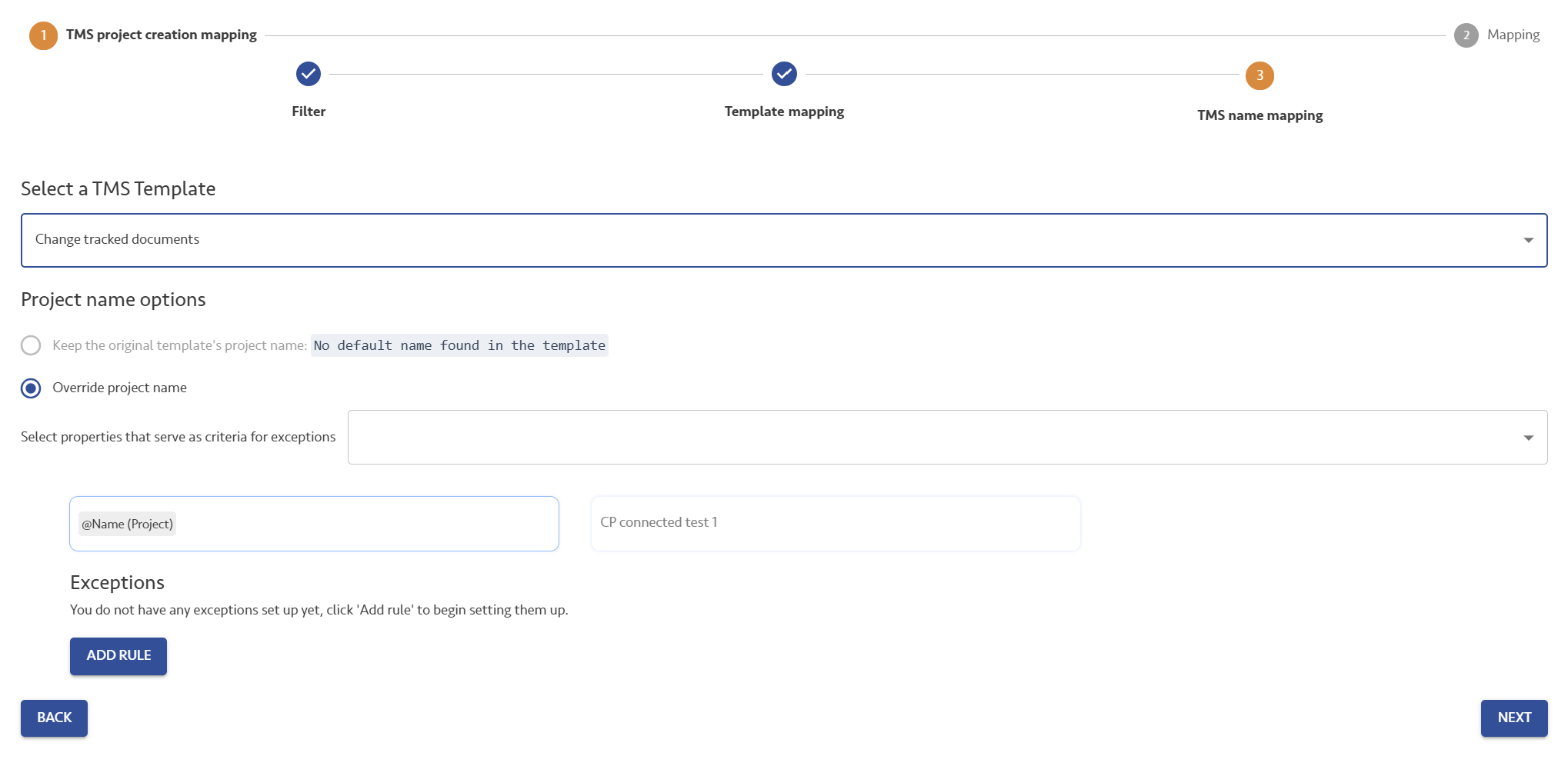
For each of the memoQ project templates selected, you can configure different project naming rules. The default setting is to overwrite the template project name with the name of the project coming from the source system. If you want to customize this further, you can use the same editor as the instructions editor in the Edit automation dialog to change the setup. By pressing @ you get all the metadata fields that you can insert into the name. Just like everywhere else, you can set up any number of exceptions based on metadata.
Workflow configuration:
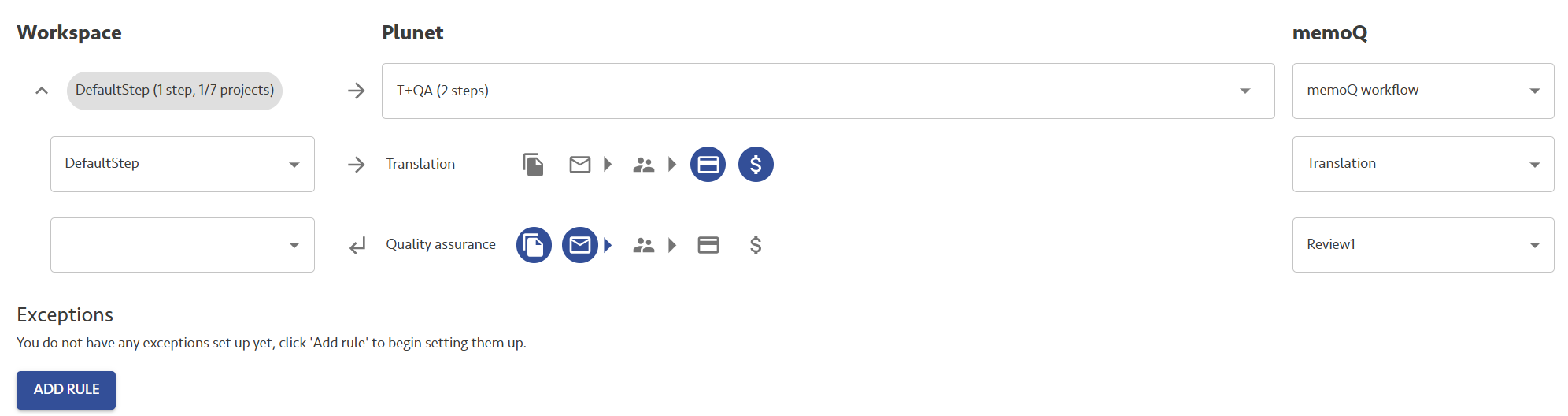
Under each and every origin workflow (in this case Workspace, could be another TMS or vendor portal or any other integration), you need to select the memoQ TMS workflow. As memoQ does not offer a fixed workflow, but always offers three workflow steps, your default choice is "memoQ workflow", which you need to select under each and every workflow that you want the memoQ project creation to work. If you expand the workflow, you can place the actual Translation, Review1, Review2 workflow steps that correspond to the BMS workflow steps in the appropriate boxes. Here, the Translation step in memoQ is assigned to the Translation step in Plunet, whereas the Review1 step in memoQ is assigned to the Quality assurance step in Plunet. Read the overview article to understand the general working of TMS workflow mapping.