
Content comes from various sources, and some of this content is in source file formats, such as DOCX, JSON, IDML, Excel or XML. In order to allow processing these formats, you need to import such files into an editor that happens to be a TMS, and perform an analysis against the translation memory (or other types of analyses that the TMS is capable of performing). The TMS then receives a workflow, and shall be synchronized when it comes to job completion and linguist assignment with the business management system or the Google Sheet tracker. At the end of the process the final file needs to be exported back into the original format, and passed back to the source of the content.
If you already receive work in a TMS, just because your customer or you prepared the project in the TMS, or a CMS integration of the TMS imported this file into a project, you can just pick up that project, read the analysis and handle that project with its own business management system integration - this is the direction we call "from TMS". In this case your business management system only interacts with the TMS you received the work in. You are synchronizing information between two systems: the source TMS and the business management system or Google Sheet.
If you do not have a TMS project, you need to create one to get the analysis and have something to interact with. So BeLazy goes "into the TMS", and creates the project there using a project template, analyses it, and allows the business management system to interact with the TMS project just created, as well as the original source of the project. In this case, BeLazy synchronizes information between three systems: the source of the project, your own translation management system, and your business management system or Google Sheet. The source of the project can actually be another TMS as well, from which you download the XLIFFs, create the project in your own TMS, and then push it back into the original TMS. For example, you can export Lokalise strings, and process them in Phrase.
We do not offer an TMS Integration Hub counterpart of every TMS connector that we support in the Content and Project Hub, as the two are quite different technically. We prioritized two very commonly used tools, Phrase and memoQ, and Crowdin, which with its enterprise edition is a significant contender. If you have a major use case for creating projects in other tools, feel free to reach out.
In BeLazy you can use more than one TMS Integration Hub connector, but each Content and Project Hub connector always can have one single TMS Integration Hub connector configured. Switching it later is very easy.
Every TMS Integration Hub connector requires a four-step setup:
- creating a connection under Manage my translation management systems,
- automating the connection under Manage my translation management systems,
- enabling the TMS project creation under the Workflow tab of any connection or workspace under Connections, in the Content and Project Hub,
- automating or editing the automation of the connection under the Content and Project Hub.
Much of the logic is identical across the different connectors, however, we describe the first two steps under the connector's specific page.
Enabling the TMS project creation
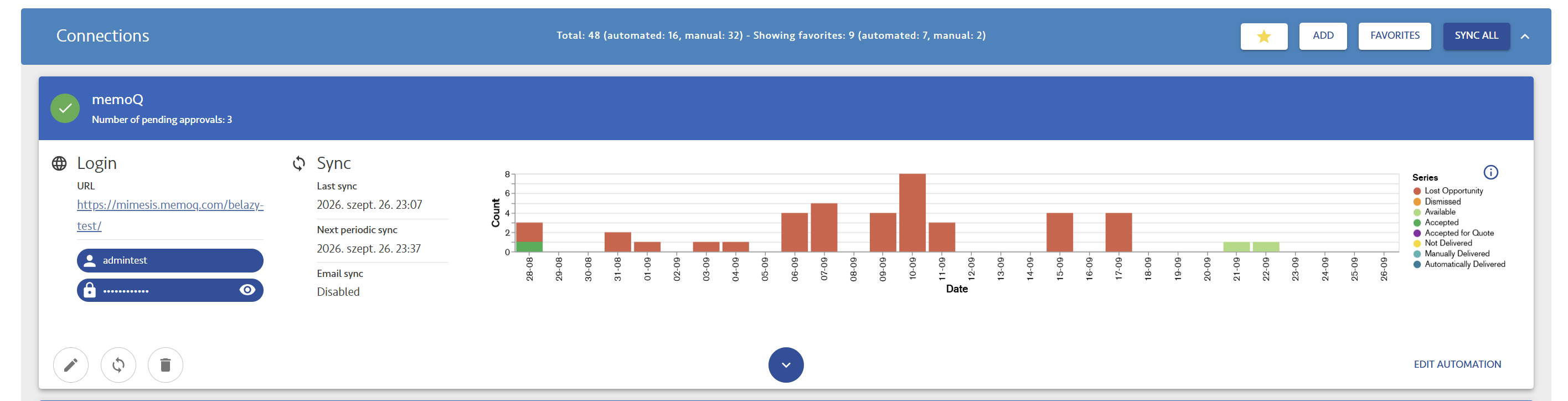
Enabling the TMS project creation is fairly simple. First make sure that the TMS Integration Hub connection is fully automated (all steps are performed under Manage my translation management systems), because otherwise you won't be able to select them. Now on the main Projects and Connections page select an existing connection, either automated or not yet automated, and click on the pencil icon on its card:
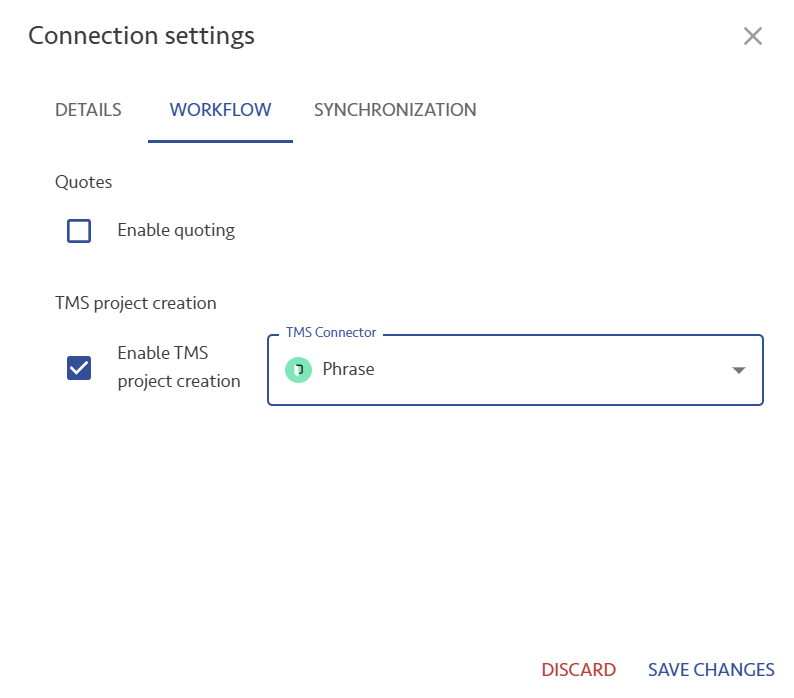
Navigate to the Workflow tab, and click Enable TMS project creation, and select the TMS connector:
Automating the connection to configure the TMS specifics
After this, click on Automate or Edit automation on the card, depending on whether the connection is already automated, and after the origin connector's configuration pages you will see two or three new TMS configuration pages.
The first page is always the same, the filter:
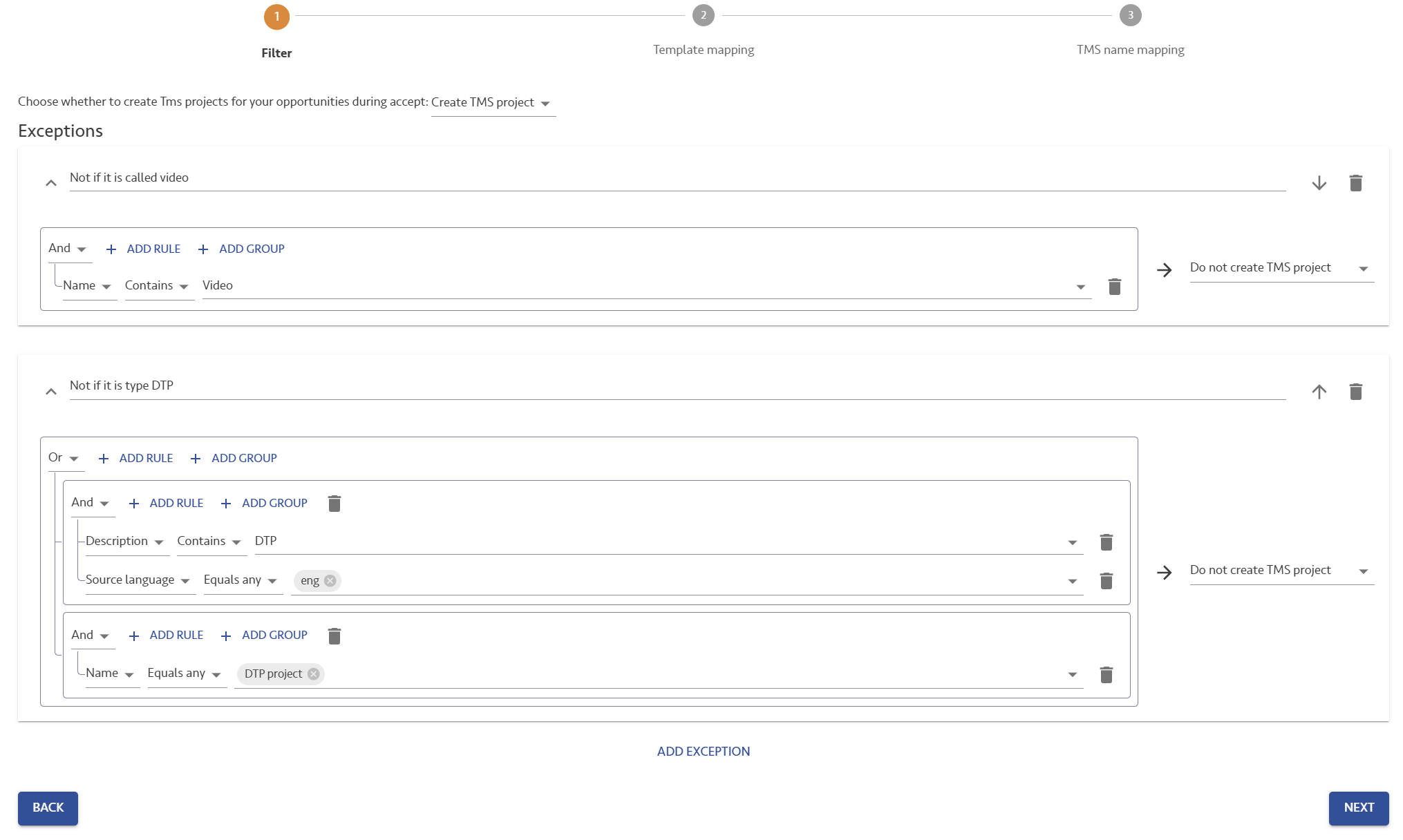
BeLazy does not always create TMS projects, there are times when you cannot or should not even attempt. You can configure the rule here (always create them unless they are under the exceptions or do not create them unless they are under the exceptions), and add different exceptions. In this example, BeLazy will not create a project if the source project's name contains the word video, or if an English-language source project with the description text containing DTP arrives, or if the name is DTP project.
The three-body problem, or how to align the workflows of three systems consistently
When you add a new TMS Integration in this direction, you are working with three systems. As a result, you need to align the workflow steps of three different systems.
Many Content and Project Hub connections will only give you one step, they send you a file and want to receive it back. You assign the business management workflow first, which is described elsewhere. When you activate a TMS connection, the TMS workflow and its workflow steps also need to be assigned to the business management system workflow.
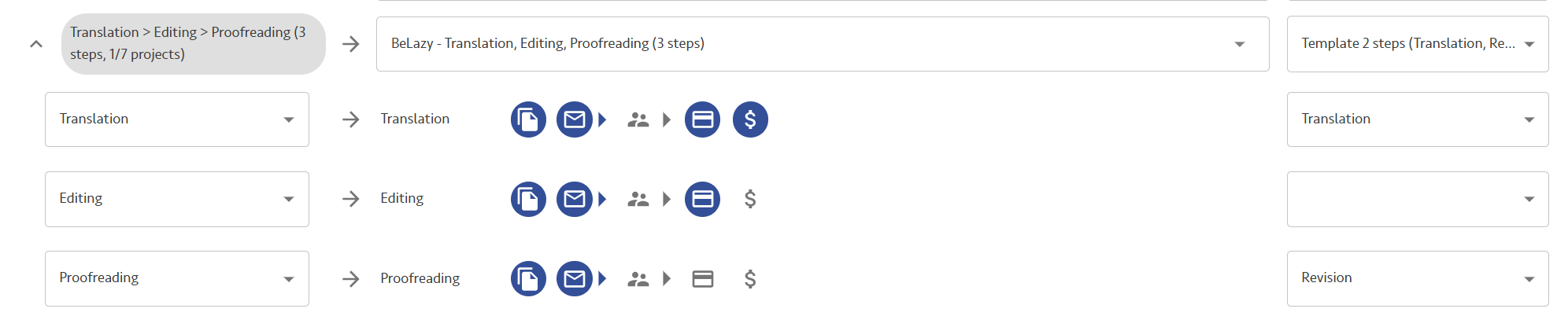
On the main line you select the project template or the configuration in the TMS, which contains one or more steps. After that, expanding the workflow to see all its steps with the little arrow on the left, you assign each TMS workflow step to the business management system workflow steps. In this example, the Translation step in Phrase is assigned to the Translation step in Plunet, whereas the Revision step in Phrase is assigned to the Quality assurance step in Plunet.
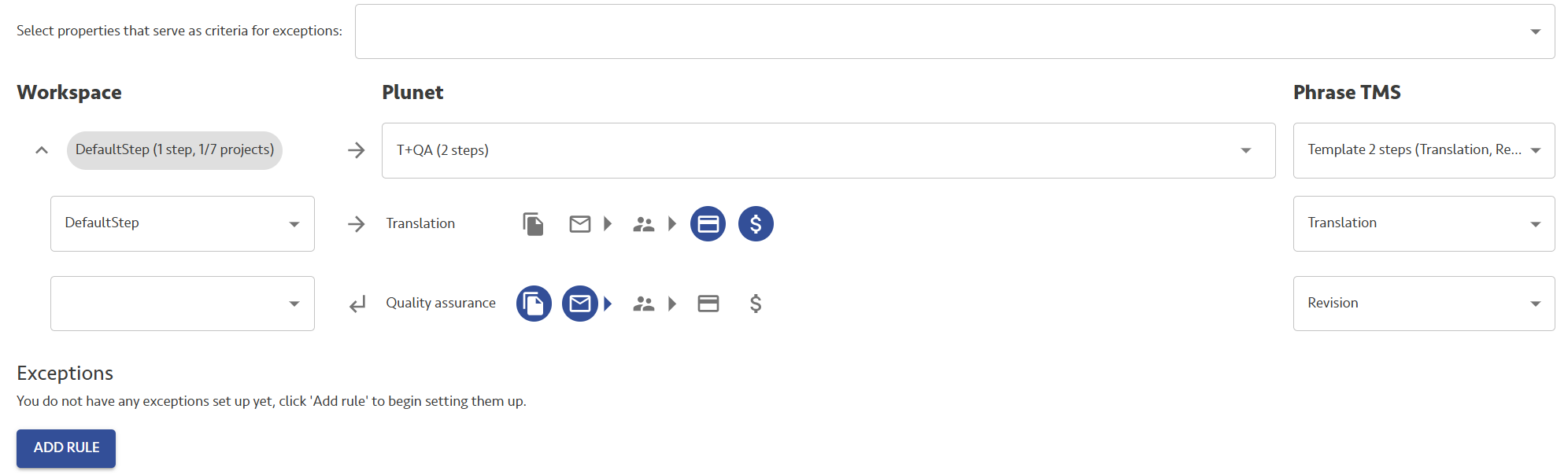
The buttons on the left influence the BMS to the workspace connection only; the TMS workflow mapping is much simpler, because the reason for the integration is much simpler. You want to create a project in the TMS and manage it from your business management system, while giving flexibility to your vendors. Therefore, vendor assignment is always business management system (or Google Sheet) to TMS, the jobs close if either the BMS job or the TMS job closes, and the exported file is delivered back at the last workflow step.
You do not have to use all workflow steps from your TMS workflow, for example, if you select a template with 3 steps but you only use 2, nothing happens. However, the workflow steps you select must be in the same order as they are in the TMS. You also do not have to assign a TMS step to each and every BMS job step. In that case, the "gap" qualifies as a continuation of the previous TMS workflow step, with new assignment coming from the BMS workflow step.
In the following example, there are two TMS steps, Translation and Revision, but three BMS steps, Translation, Editing and Proofreading. The vendor assigned to Translation in the BMS gets assigned to Translation in the TMS. They should deliver in the BMS, not the TMS, because if they deliver in the TMS, also the Editing job will be closed. If they deliver in the BMS, the workflow proceeds to Editing, and assigns the vendor assigned to Editing to the Translation TMS workflow step. Now the vendor can close the job in the TMS, as that closes the right job in the BMS. At Proofreading, the vendor assigned to this BMS step will be assigned to and work on the Revision workflow step in the TMS. The job can be closed in either system, and then the final file is exported back into the origin project after closing the TMS project if necessary.
The rest of the pages and the filters are described under the integration descriptions.
Learn more:
- Phrase TMS integration
- memoQ TMS integration
- Crowdin Enterprise integration
- Automating a TMS configuration: Unit mapping, Rate/analysis mapping, Linguist mapping and Language mapping