
Connections as the guiding thread
In BeLazy, opportunities are received from the Content and Project Hub through different connections. When an opportunity can be automated through a connection, it is converted into a project and processed across multiple systems.
Connections are integration blueprints that link data between hubs. They define all the rules for an integration, including which systems it passes through, which workflows it follows, which templates it uses, and which values are entered into the systems based on the source values.
In BeLazy, you configure the connection rules once, after which the connection can operate automatically. However, if you are new to BeLazy and automation, configuring a connection correctly may take some time. You may need to revisit the configuration several times using the Edit automation button on the connection card.
Connectors and workspaces use the same wizard. If something changes later—for example, if a client sends new values—you will receive a notification that requires your attention. The issue must be resolved before the project can continue through the workflow.
Automated connections contain all the rules required to approve projects coming from the Content and Project Hub, select the appropriate values and actions, and apply the correct workflows in your connected systems. By default, every connection must be mapped to the Business Management Hub. Configuring the TMS Processing Hub and AI Hub is optional. The connection is the mechanism that links the different hubs and allows data and processes to move between them.
Which connection pages are shown, and which are hidden?
Connection automation takes you through a number of connection pages. Almost every connector has connector-specific configuration that sets up certain specifics relating to the connection type of the Content and Project Hub. These appear on up to three different tabs, and depend on the connection type. You can find a description of these settings under the connector-specific integration pages.
If you enabled TMS processing for a specific connection using the pencil icon, you will also get to configure the creation of TMS projects. Depending on which TMS integration you choose, refer to the TMS Processing Hub-specific integration pages.
The Business Management Hub-specific configurations are detailed in the following descriptions. If you are using XTRF, Plunet or Protemos, make sure to perform all the preparation steps before automating the connections, otherwise you may run into error messages that are even hard to troubleshoot for a support engineer, let alone a new user. If you are unsure how to do this, request help, the BeLazy team is happy to double-check and set up all the configuration for you. The majority of the configuration is very similar or identical across all systems, except that the price line mapping is more complicated in Plunet than in other tools, where it is a simple Rate mapping, and has its own pages.
If you are using BeLazy only, with or without the Google Sheet project management tool, or if you are using your own business management system, first double-check if you have entered values into all the different data categories under Manage my business management system. If a category is empty, BeLazy won't show a mapping page for those values but rather just register the values coming from the Content and Project Hub connector. This is the most typical reason why certain pages do not appear.
The user interface logic
Most of the configuration pages fall into certain categories:
Exception-based selectors
BeLazy is fully metadata-based: it receives as much metadata from the project source as possible. Metadata-type lists can be long, and not all metadata influences a certain decision. For example, the workflow probably does not influence your client selection (who the project is billed to), but it may influence your project manager selection (multimedia gets processed by another team). Therefore exception-based selectors work on the basis of three decisions:
Decision 1: which value to select as default? BeLazy is meant for recurring work, so it normally uses a fixed set of values. For example, BeLazy does not create customers in your systems, but it does create projects for your customers.
Decision 2: what influences your decision on which value to select? See the example below: we do not know the name of the customer, but we do know that if the Type value is set to Accessory, we should bill that to Webshop.com, Inc. Under Project metadata that the chosen client depends on, I select Type. This is the metadata that I will be able to select the values for. Note that this decision is separated in the user interface only to improve the user experience: for the human solution architect that reads a configuration, it becomes trivial what values matter or may matter for a certain decision. For example, in the rules below, we did not use the End customer value, but it may be relevant as well and it is offered below.
Decision 3: value mapping. If .... then is the value mapping logic. As it is of Accessory type, we assign Webshop.com, Inc.
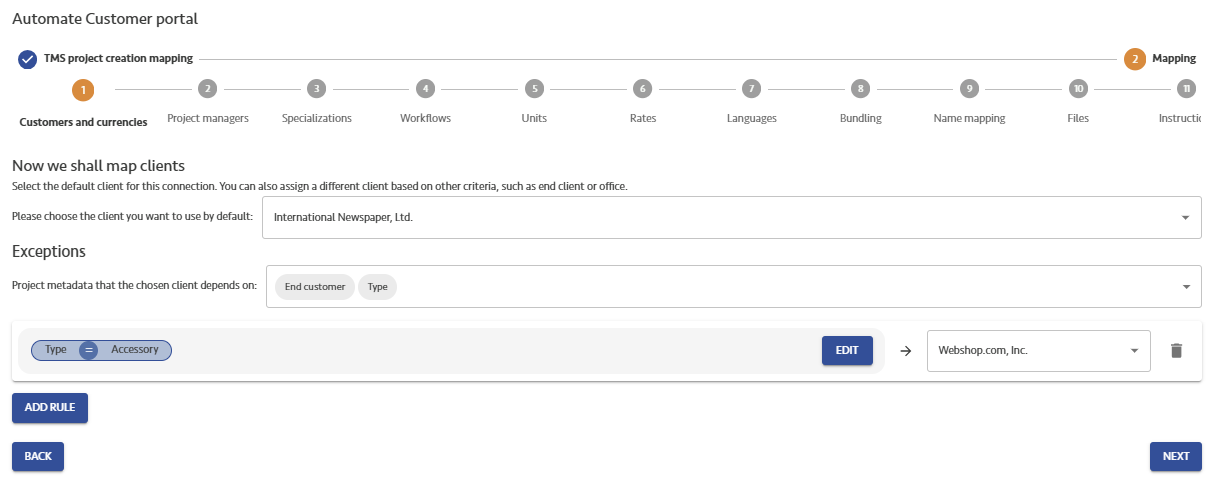
Exception-based selectors are the most common user interface element.
Value to value mapping selectors
In this user element you have various values that you need to map to the existing values in another system. This is always value mapping between two systems. From the origin system, you may have one or more values coming. For example, in the unit mapping example below, the source system sends a unit which it calls Word, and you need to find the equivalent in the business management system, which in our case is words. This is often simple, but for example you could have source words, target words, weighted words in the target, and then the choice is not this simple any longer.
There is also many-to-many value mapping like the rate mapping: a TMS offers for example 0-79%, 80-89%, 90-99% values - to which business management system values do you map these to?
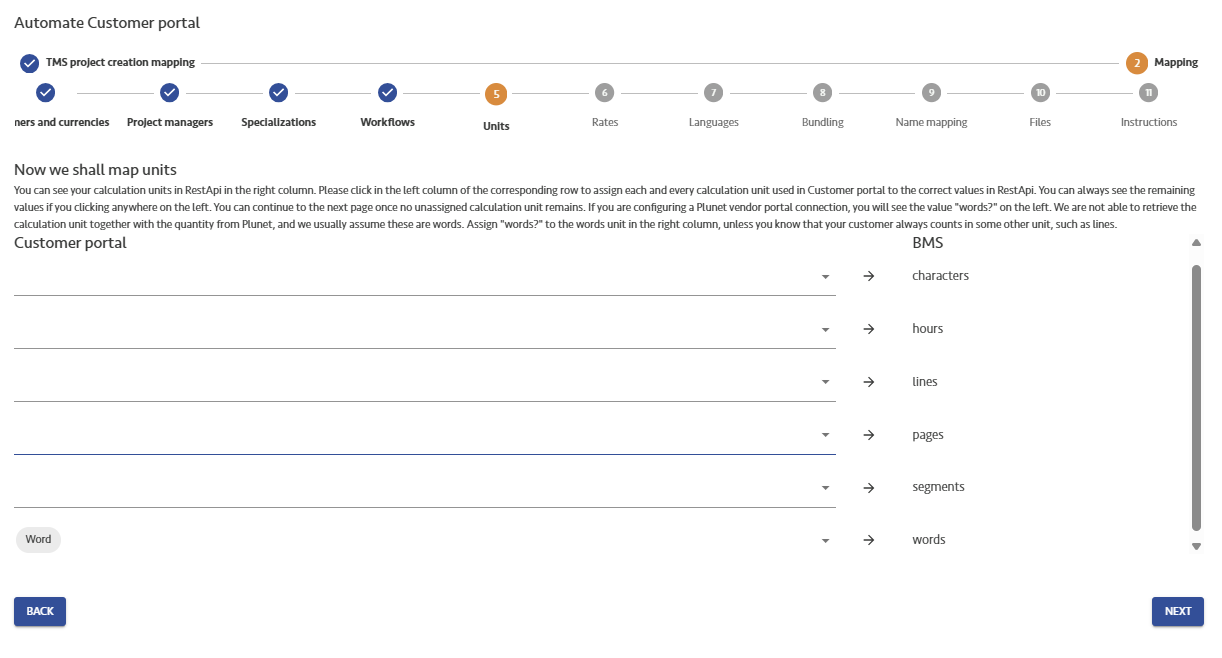
On the user interface, you need to click on any of the lines to see the possible values appear. Once you see the values, you know which one belongs to which line, and you can place them there.
Advanced exception editor
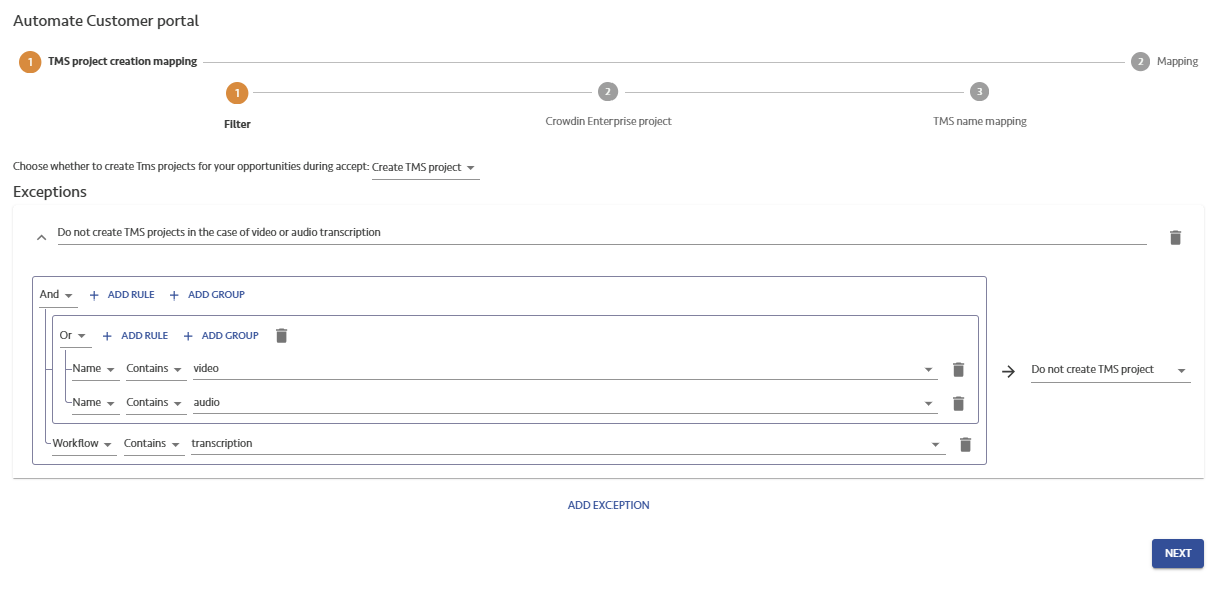
This user interface element is less frequent, but can explain complex rules in one expression. For example, the expression below allows you to not create TMS projects if a project's workflow contains transcription and the project name either contains the word video or it contains the word audio. Such exceptions are also worth naming.
You can find this user interface element in the TMS exception handling, in the auto-approval rules, and the CRM filter configuration in the Sales Management Hub.
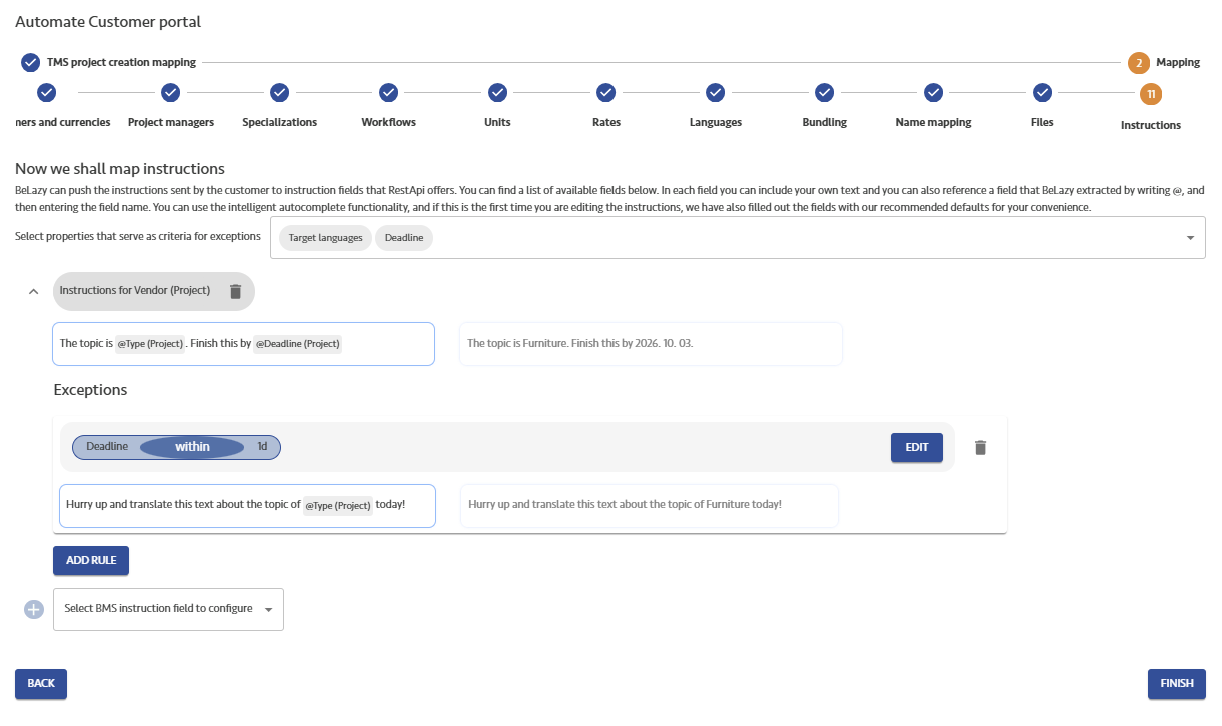
Instruction editor
Instructions may include text and placeholders. The instruction editor is on the left, this is where you put the placeholders typing @ first, and then selecting from the list of offered values, and the preview appears on the right. The instruction editor is often combined with the exception-based selectors, like in our case, where the instruction is different if the deadline is within 24 hours.
There are other user interface elements for bundling, name mapping, file exclusion, and most importantly, workflow mapping, however, these elements are not repeated.