
Automated messages let BeLazy notify people in your team when something happens in your connections, for example when a new opportunity is waiting for approval or a vendor was assigned in your business management system. You do not need any code. They are the Messaging Hub of BeLazy and run on the same events as webhooks, but the receiver is a person instead of a system.
Open Automated messages in the profile menu. The page has four tabs: Email design, Message definitions, Recipients and Delivery log. A message definition says when a message is sent (an event, optionally limited by connection and conditions), to whom (recipients) and what it says (subject and body). The recipients and the design are shared by all definitions. We recommend setting up the recipients first, then the email design, then your first definition.
Email design
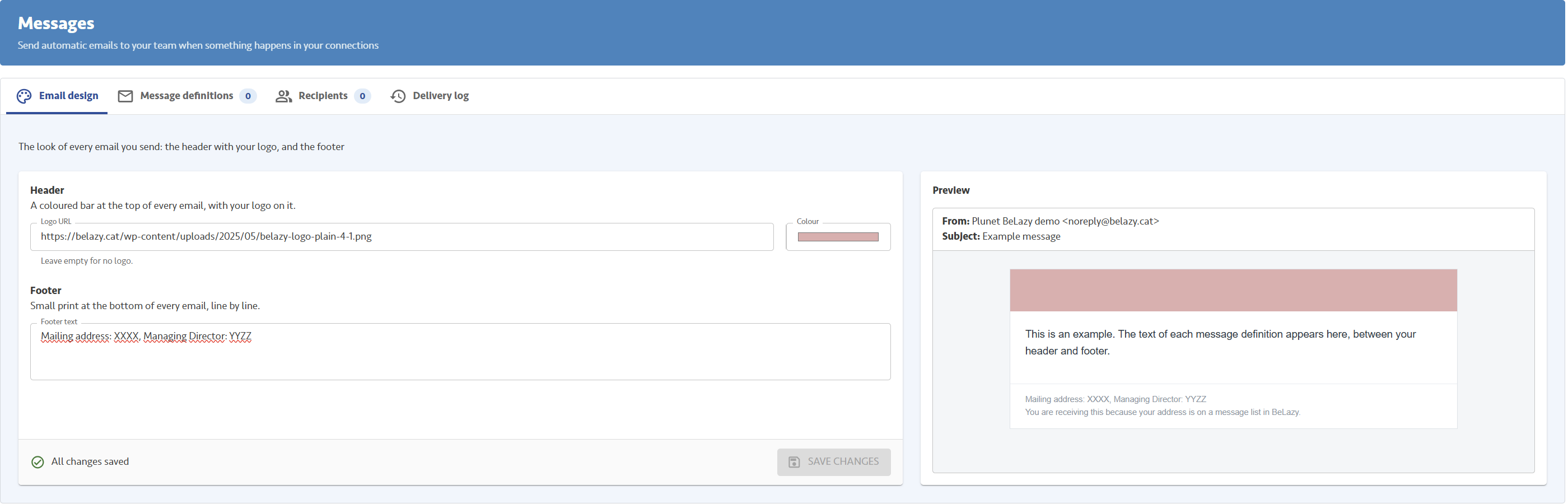
Every message sent by email gets the same look: a coloured header bar with your logo, and a footer.
- Logo URL: the web address of your logo image. Leave it empty for no logo.
- Colour: the colour of the header bar.
- Footer text: small print at the bottom of every email, line by line. The footer is your own text and BeLazy does not check it. Below it, BeLazy always adds a line telling the reader that they receive the message because their address is on a message list in BeLazy.
The preview on the right shows how your emails will look. Click Save changes. Emails are sent from noreply@belazy.cat, with your organization name as the sender name.
Recipients
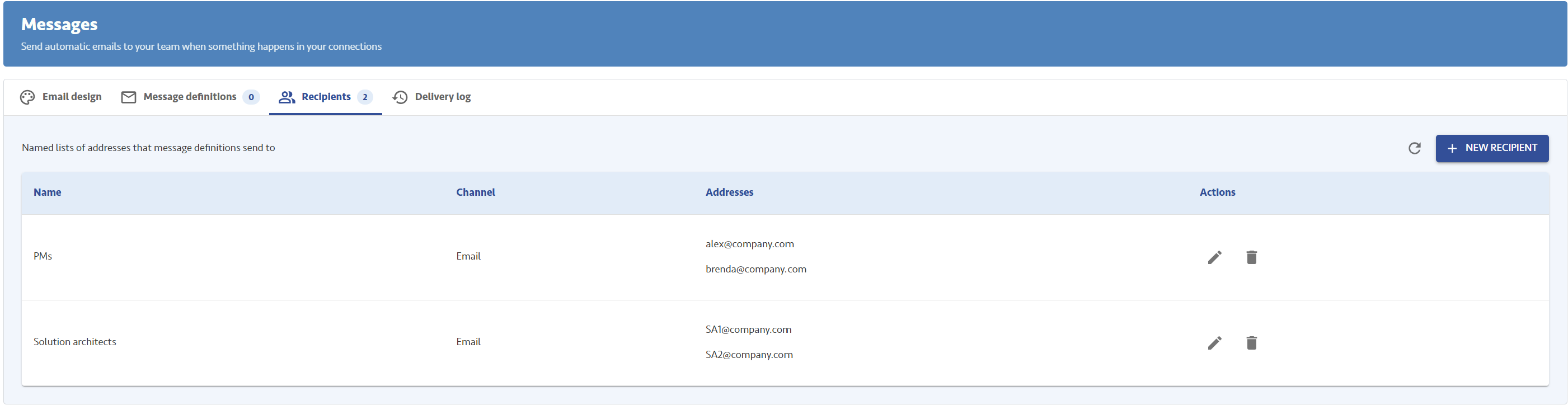
A recipient is a named list of one or more addresses, for example "Project managers". You create it once and reuse it in as many definitions as you like. Enter a Name, choose the Channel, which decides how the recipients are reached, and enter the addresses for that channel. For email, enter the Email addresses: press Enter, comma or space after each address, or paste a list. BeLazy checks the addresses when you save. You can also add a recipient while writing a definition, with the button next to the Recipients field.
The list shows each recipient's name, channel and addresses. Use the icons on the right to edit or delete a recipient.
If you delete a recipient that is used in definitions, it is removed from them. BeLazy tells you in how many definitions before you confirm.
If messages to an address do not arrive, the person may have unsubscribed. You can resubscribe the address in My organization, under the user's address.
Message definitions
The list shows each definition's name, trigger, recipients, scope, when it was last sent and its status. With the icons on the right you can pause, edit, duplicate or delete a definition. A paused definition sends nothing until you resume it.
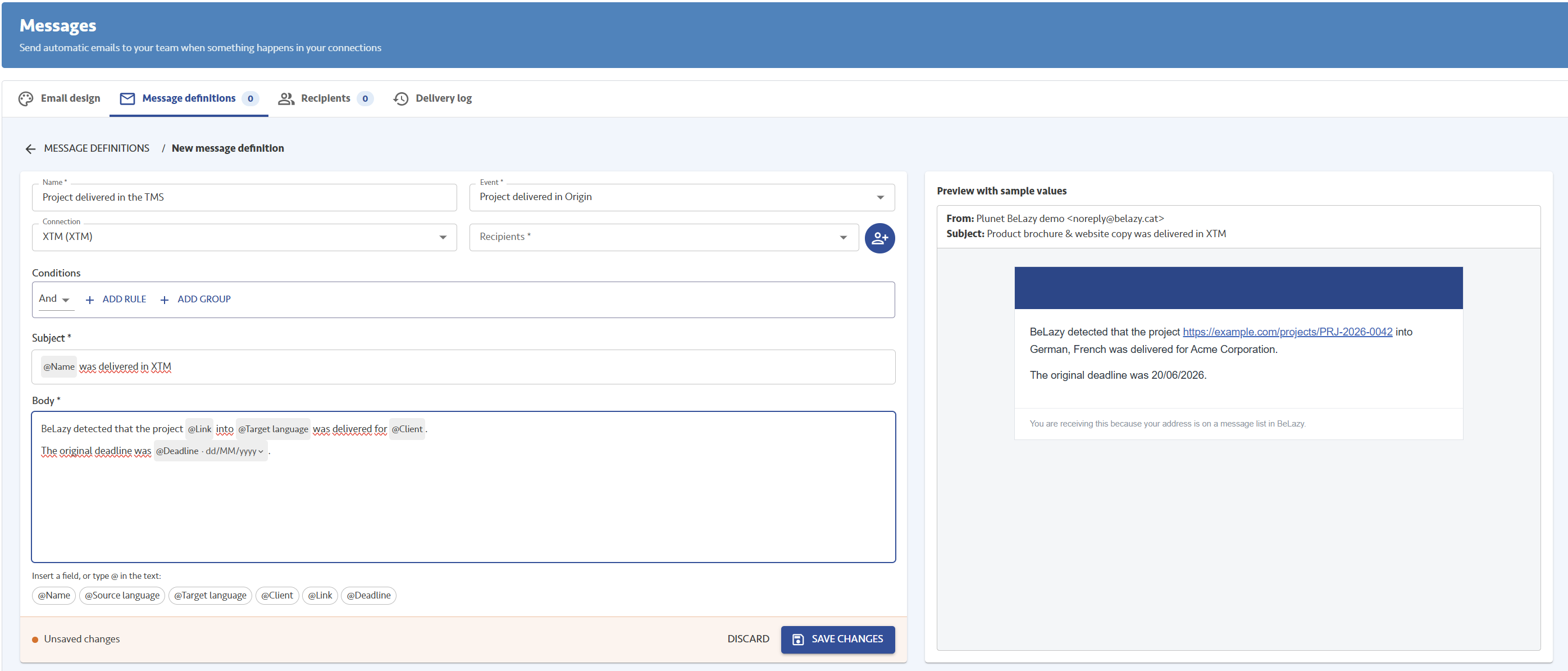
Click New definition and fill in:
- Name (required): a descriptive name.
- Event (required): exactly one event, grouped by opportunity, project and quote. The events and when they fire are explained under Event types in Webhooks.
- Connection: All connections by default, or one connection.
- Recipients (required): one or more recipients.
- Conditions (optional): see below.
- Subject and Body (required).
Click Save changes. Unlike a webhook, a definition has one event, one connection (or all) and one text. If two connections need different wording, create a definition for one, use Duplicate, and change the connection and the text.
Conditions
Without conditions, the message is sent every time the event happens. With conditions, it is sent only when they are met. Conditions only decide whether a message is sent and never change its text. The builder works like the one for auto-approval rules: combine conditions with And or Or, and use Add group to nest them. The fields are Name, Source language, Target language, Client, Link and Deadline. The operators are the same for every field, Deadline included: Equals any, Equals none, Is empty, Is not empty, Contains, Does not contain, Starts with, Ends with and Regex matches.
Subject and body
Write the text as you do for instructions. Click a field below the text box, or type @, to insert a value: @Name (the project name), @Source language, @Target language, @Client, @Link (the link to the project in the origin system) and @Deadline. These fields exist on every connection. The preview shows the message with sample values, together with your design.
Delivery log
The log shows what was sent and to whom, with one row for each message to each recipient: When, Definition, Event, Recipient, Channel and Outcome. It does not store the text of the messages. Filter by outcome with the buttons above the table, search by recipient, address or definition, and refresh the list. If a recipient's messages are not delivered, see Recipients above.