
The Jobs sheet is where you work day to day. From it you can assign a vendor to a job, change a deadline and close a job, and each of these actions is sent back to BeLazy and to your TMS or BMS. The project side panel and your personal jobs tab make this comfortable on a large table.
All of this requires the triggers to be installed. If your edits do not reach BeLazy, run Translation tools > Initialize BeLazy triggers once, as described in the setup article.
Assign a vendor to a job
You can assign a vendor in two ways.
The quick way
Type or pick the vendor name directly in the Vendor column of the Jobs sheet. The dropdown lists the vendors from the Vendors sheet. As soon as you leave the cell, the assignment is sent to BeLazy.
With cost calculation
- Select any cell in the job's row in the Jobs sheet.
- Choose Translation tools > Select vendor..., or use the Select vendor button next to the job in the side panel.
- A dialog lists the matching vendors with the calculated cost for this job.
- Click a vendor. BeLazy writes the vendor into the Vendor column, writes the calculated cost into Payables, and sends the assignment.
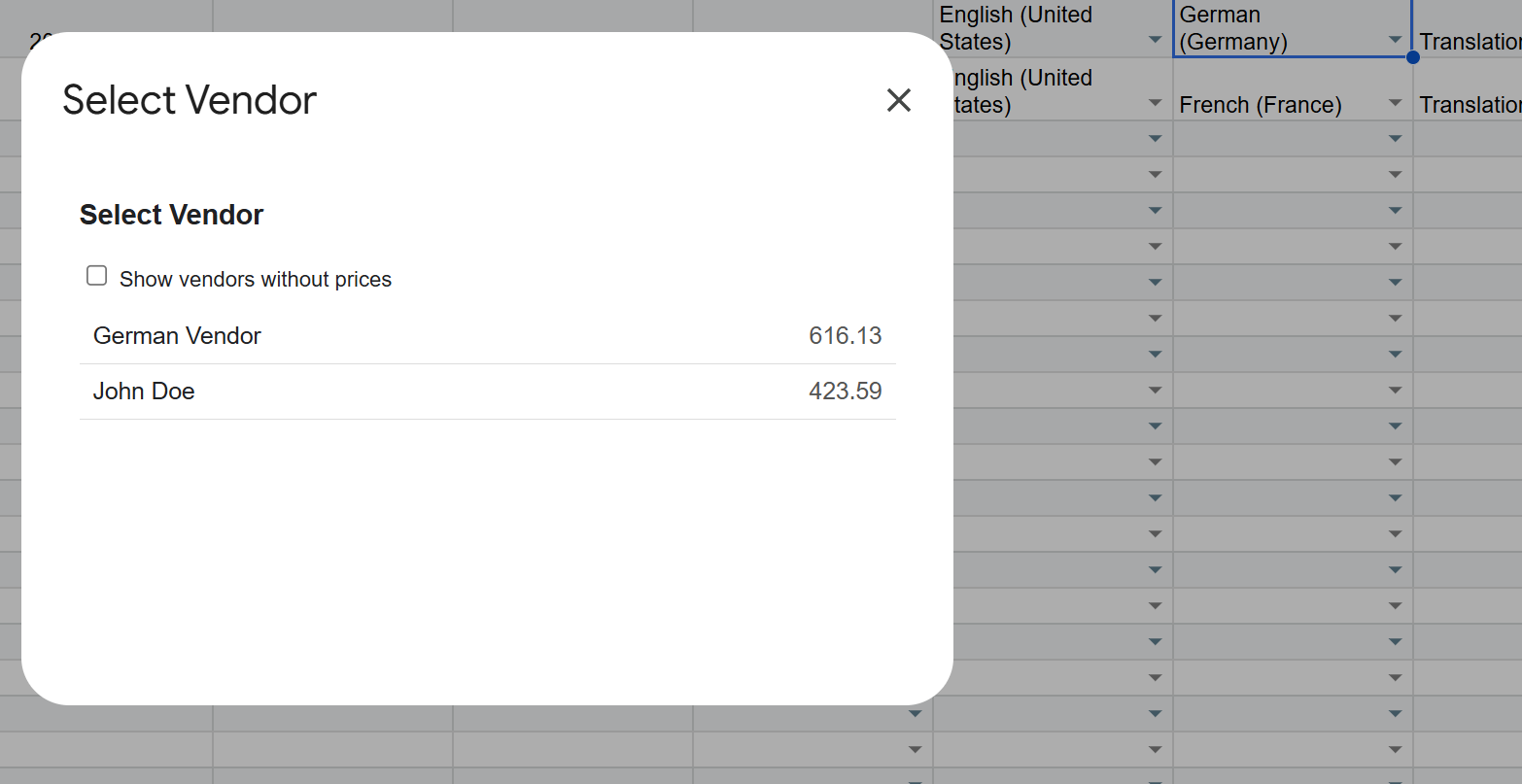
The action is available only while the job's Status is Open. Which vendors appear, and how their cost is calculated, is covered in the article on setting up vendor pricing.
If the assignment fails in BeLazy, for example because the connector rejects the linguist, the cells are restored to their previous values and the error is shown, so what you see in the sheet is what actually happened.
Change a deadline, close a job
Both actions work on the selected job row and are available while the job is Open.
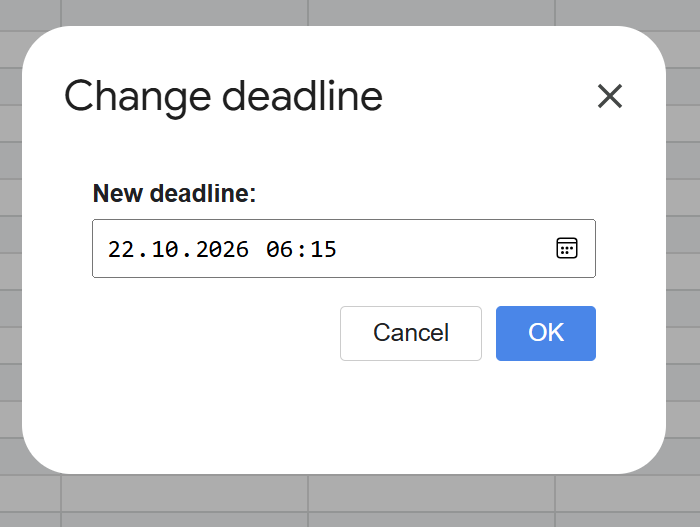
Change a deadline. Either type a new value into the Due date column, or use Translation tools > Change deadline... for a date picker. Either way the new deadline is sent to BeLazy.
Close a job. Either set Status to Closed, or use Translation tools > Close the job. BeLazy sends the close request to the BMS. The cell is not changed by the script itself: the job's real status arrives with the next synchronization, usually within moments. If the close is refused downstream, you will see it in BeLazy's notifications and the status stays as it was.
The project side panel
Translation tools > Open project panel opens a panel on the right that shows the project of the currently selected row as a form, instead of making you read across forty columns.
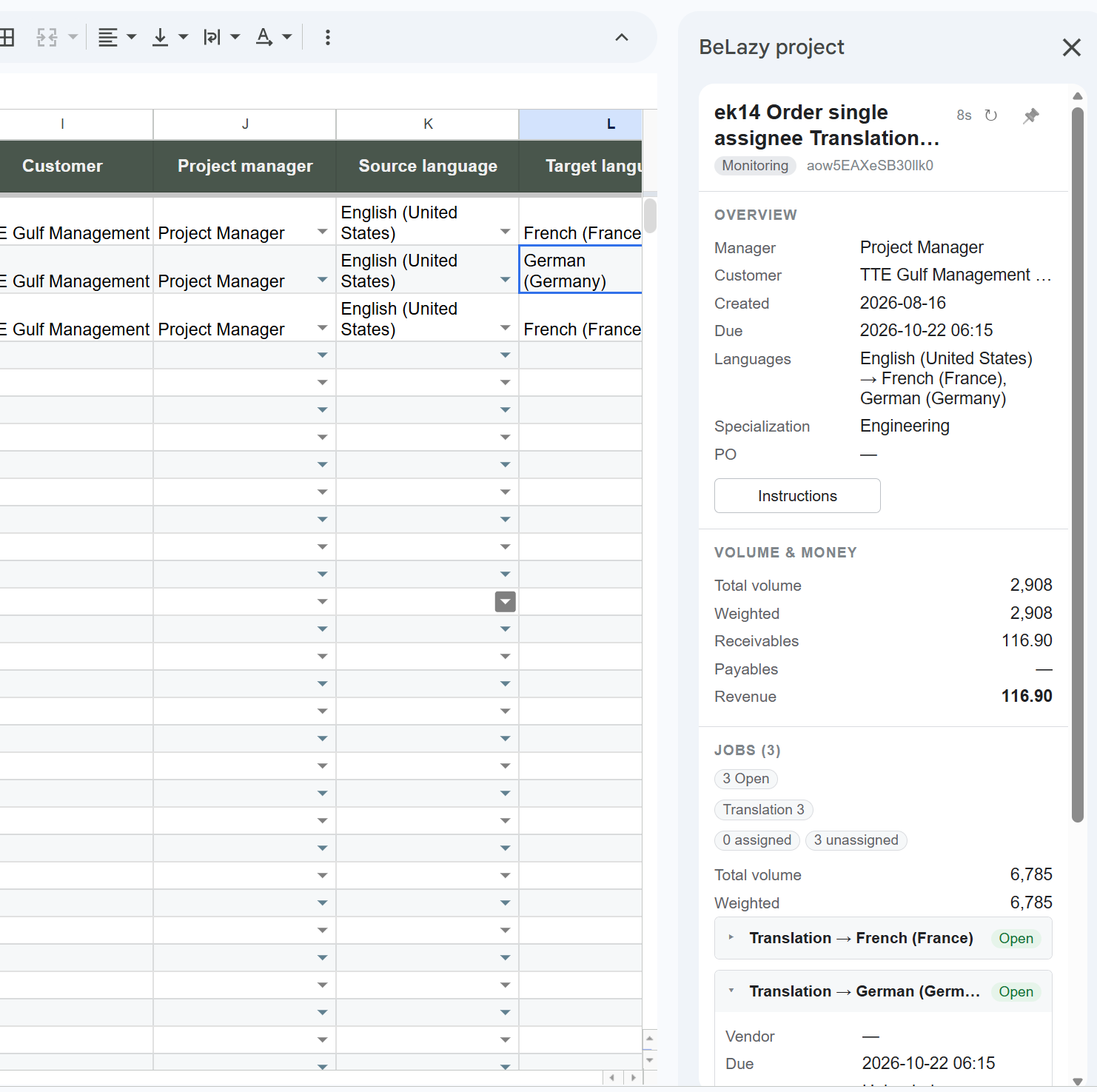
It shows:
- the project: dates and deadline (overdue ones are marked), manager, customer, status, specialization, PO, language pairs, volumes and money;
- a summary of its jobs: how many, by status, by work type, and how many already have a vendor;
- every job as an expandable card with its vendor, deadline, volumes and money.
It follows your selection. Click any row in Projects, Jobs, Analysis data or your personal jobs tab, and the panel switches to it. Because Google gives scripts no way to be notified about a selection change, the panel checks every few seconds; if nothing changes for a while it slows down and shows a small countdown, and it speeds up again as soon as you do something. The refresh button checks immediately.
Pin freezes the panel on the current project, so you can scroll and click elsewhere without losing it. Click it again to follow the selection again.
The buttons on each job card duplicate some of the main menu items, but they also give quick access to the job analysis and instructions, so you do not have to select the row first.
Files
Every job card has a Files section that loads on demand from BeLazy through the API. It shows the files of the job itself, plus a Project-wide group for files that belong to the whole project. Files already delivered are marked delivered.
A file marked not stored means the Permanently store files in BeLazy option is off for the connection this project came from, so only the name, type and size are known.
Analysis
The Analysis button shows the job's TM band breakdown: words, weight and weighted words per band, with totals. It reads the Analysis data sheet, so it says plainly when a job has no analysis at all, instead of showing zeros.
Instructions
The Instructions buttons show the internal, vendor and customer instructions for the job or for the project in a readable dialog.
Your personal jobs view
Translation tools > Show my jobs... creates a tab named Jobs for <your name> that contains only the jobs where you are the project manager. It is a live filtered view of the Jobs sheet, so as the Jobs sheet is updated by synchronization, your tab follows.
The tab is created once and protected, so that only you can edit it. The side panel works from this tab too, so you can drive your whole day from it.
Your name has to appear in the Users sheet with the Google address you are signed in with. That is how the script recognizes you.