
This article explains how data moves between BeLazy and the spreadsheet in both directions, what happens to projects once they are closed, how the archive keeps your working table from growing forever, and what to do when something does not behave.
BeLazy to spreadsheet (automatic)
Whenever something happens to a project in BeLazy, that is, it is transferred to the BMS, changes, is dismissed or is closed, BeLazy updates exactly that project's rows in the spreadsheet. If the spreadsheet is open, you see it in real time.
The reference sheets (Customers, Users, Languages, Work types) are topped up in the same pass.
Spreadsheet to BeLazy
The list of operations is currently limited to:
- assigning a Vendor,
- changing a Due date,
- setting Status to Closed.
These require the triggers to be initialized once per spreadsheet. Nothing else you type in the spreadsheet reaches BeLazy.
Manual sync from BeLazy's settings page
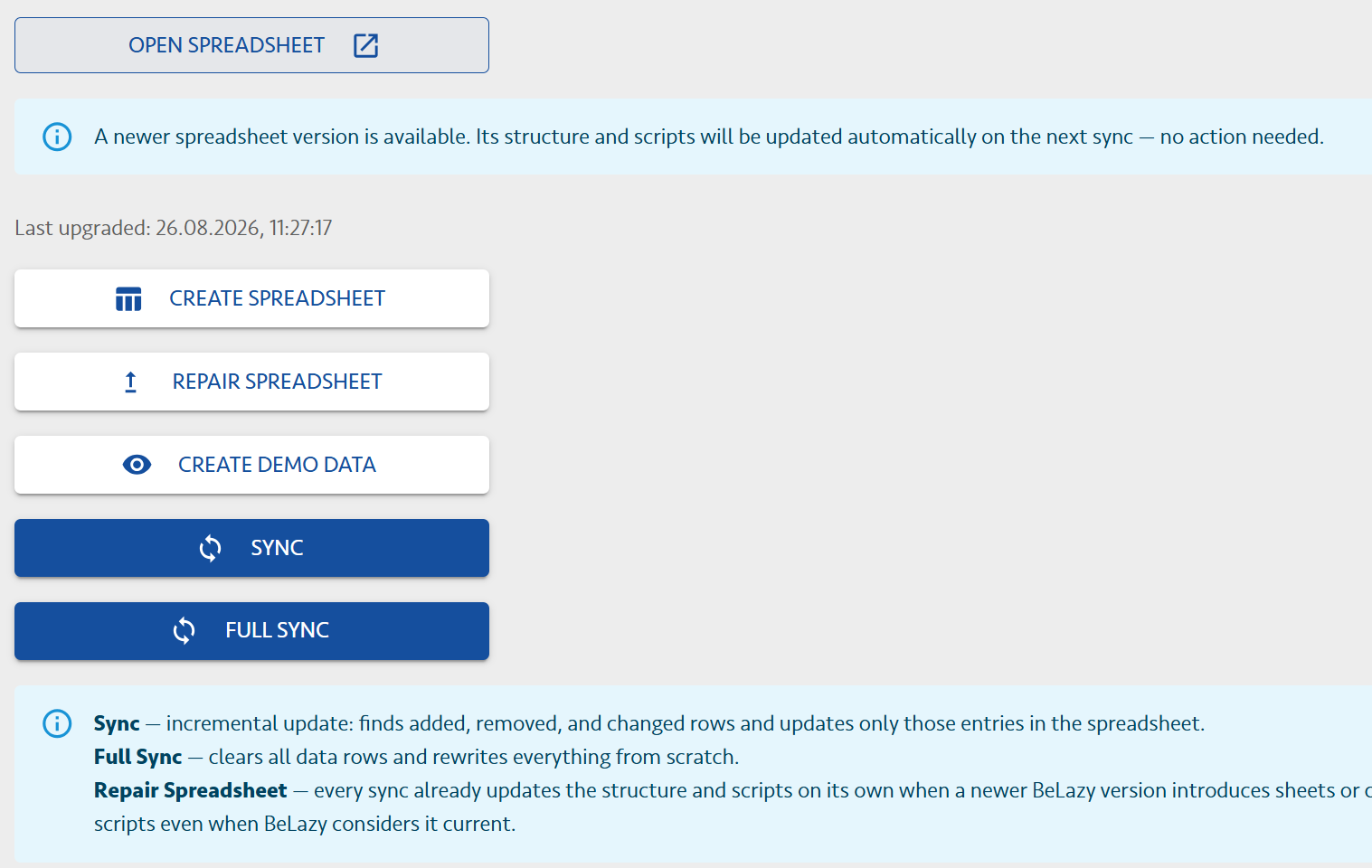
| Button | What it does | When to use it |
|---|---|---|
| Sync | Compares the current data with the last synchronized state and rewrites only what changed | Your normal "refresh everything" button |
| Full Sync | Clears all data rows and writes everything again from scratch | When the table looks wrong or badly out of order |
| Repair Spreadsheet | Re-applies the sheet structure, re-installs the scripts, then runs a full sync. It also runs automatically when the system detects structure changes, for example after a new version is released | When the file was edited by hand and no longer matches: missing sheets, broken headers |
| Create Demo Data | Replaces the data with a demo data set | For trying things out |
Both Sync and Full Sync keep your user-maintained rows: price lists, fuzzy schemes, vendor capabilities and customer price lists are never deleted.
When a new BeLazy version adds sheets or columns, your spreadsheet is brought up to date automatically on the next sync. Repair Spreadsheet exists only for the case where something was broken by hand.
What is not synced
- Notes columns and anything you typed into read-only cells.
- Columns you added yourself, which are removed when the structure is brought up to date.
- Tabs you created yourself, which are left alone, but BeLazy neither fills nor protects them.
- Files, which are listed live in the side panel and never written into the spreadsheet.
- Price lists, fuzzy schemes and vendor capabilities, which exist only in the spreadsheet. BeLazy reads them but never sends them back, and they are not stored in BeLazy.
- Payables calculated by the vendor dialog, which is a local figure for your planning.
Closed projects disappear
The spreadsheet shows the projects BeLazy is actively monitoring. Once a project is closed or dismissed, its rows leave the Projects, Jobs and Analysis data sheets. That keeps the operational table small and fast, and it is exactly what the archive is for.
The archive
With archiving switched on, a project that leaves the operational table is appended to an archive spreadsheet instead of simply disappearing. Your working table stays at the size of your live workload.
Turn archiving on
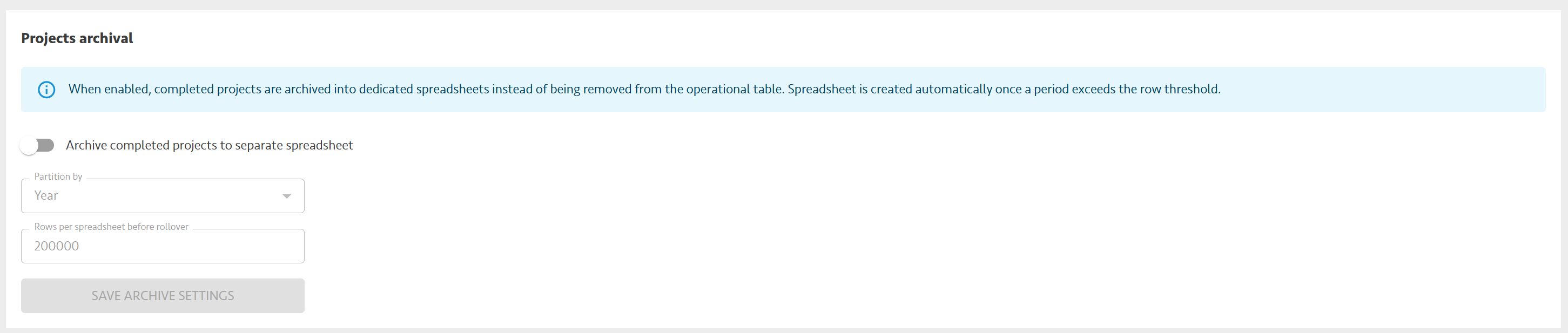
In Settings > Google Sheets Integration, in the Projects archival box:
- Switch on Archive completed projects to separate spreadsheet.
- Choose Partition by: Year, Quarter or Month.
- Set Rows per spreadsheet before rollover (default 200 000, maximum 1 000 000).
- Click Save archive settings.
How the archive works
- Archive spreadsheets are created automatically, in the same Google Drive, named BeLazy Archive <period> (01), for example BeLazy Archive 2026 (01), BeLazy Archive 2026-Q3 (01) or BeLazy Archive 2026-08 (01).
- The period comes from the project's creation date, not from the date it was closed, so a project always lands in the period it belongs to.
- When a period's spreadsheet reaches the row threshold, the next one is created with the sequence number (02), (03) and so on. Nothing is ever overwritten.
- Each archive file contains four sheets: Projects, Jobs, Project extra data and Job extra data, with the same columns as the working table, headers frozen and formatted. There are no scripts, no dropdowns and no side panel in an archive file. It is data to read, filter and export.
- Rows are only ever appended. They are never removed, and BeLazy never rewrites an archived row afterwards.
- Projects created before 1 January 2025 are not archived. That is the cut-off for historical data.
Open an archive
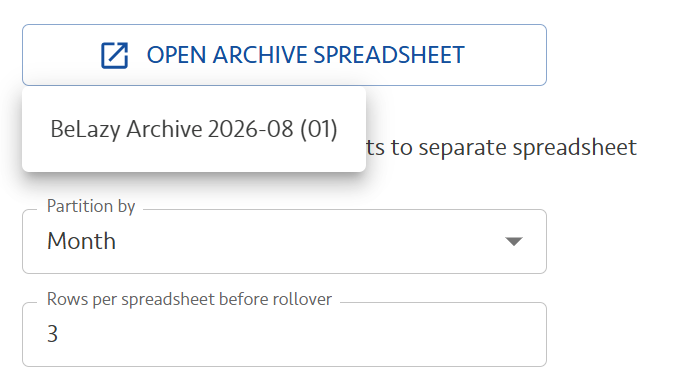
The Open archive spreadsheet button in the archival panel lists every archive file BeLazy has created, newest period first, with a search box once there are many. You can also find them in Google Drive by searching for BeLazy Archive.
If archiving is off
Closed projects simply leave the spreadsheet and are not written anywhere else. The data is of course still in BeLazy, but you will not have it in a spreadsheet. If historical reporting in Sheets matters to you, switch archiving on before you start closing projects: it is not retroactive. Full archive recreation will be added later.
Troubleshooting
The Translation tools menu is missing. Reload the spreadsheet and wait a few seconds. If it still does not appear, the scripts were never installed: check that the Google Apps Script API is on for the owning account, then click Repair Spreadsheet in BeLazy.
Menu items do nothing, or Google shows permission errors. You are probably signed in to several Google accounts in this browser. Open the spreadsheet in an incognito window with only the right account.
I changed a vendor, deadline or status and nothing happened in BeLazy. The triggers are not installed: run Translation tools > Initialize BeLazy triggers. Then repeat the edit, because the earlier ones are not sent retroactively.
My paste was undone and the cells are empty. You edited more than 10 job rows at once. That is rejected and the edited cells are cleared. Redo it in batches of ten or fewer.
A vendor does not appear in the Select vendor dialog. Their Supported source languages, Supported target languages or Supported work types do not cover the job. Compare the spellings with the Languages and Work types sheets.
All costs are 0. The job has no rows in Analysis data, because the TMS delivered no analysis for it. Assign the vendor anyway; the cost simply cannot be calculated.
A column I added is gone. BeLazy owns the column layout and removes columns it does not define. Keep your own calculations in your own tab.
Cells have red warning corners in a multi-value column. Multi-selection is not configured for that column yet. See the setup article.
The spreadsheet looks broken: missing sheets, wrong headers, no menu. Repair Spreadsheet in BeLazy rebuilds the structure, re-installs the scripts and runs a full sync.
The side panel shows old data. Press the refresh button in its header. The panel reads the spreadsheet, so it can only be as fresh as the last sync.
Golden rules
- Initialize the triggers once, before you start working.
- Edit only the columns that are meant to be edited; everything else is overwritten.
- Never add columns to a BeLazy sheet, use your own tab.
- Ten job rows at a time, maximum.
- Keep fuzzy band names identical to the names in Fuzzy types.
- Switch archiving on before you need it, it does not work retroactively.